
Use this task to add new preceptors and staff members to your program, assign appropriate PharmAcademic roles, and update role assignments as needed. This task can be completed by RPDs and Designees.
Important: Once added to PharmAcademic, only preceptors can update their profile information, including their email address.
Instructions for Adding Preceptors and Staff
Step 1: Add the Preceptor as a PharmAcademic user
- Click the Manage Program button.
- Select the Preceptors and Staff tab.
- Click the Add Preceptor or Staff link.
- Enter the preceptor’s First Name and Last Name and click the Search button. Note: If a PharmAcademic account is found, you will be able to select the resident’s existing account.
- Select Add New PharmAcademic User.
- Enter the preceptor’s email address in the Add New User Email field and click the Check Email button.
- Enter the preceptor’s profile information on the Add New User page. Please complete the required fields (designated by an asterisk).
- Click the Save User button.
Step 2: Assign Roles to the Preceptor/Staff
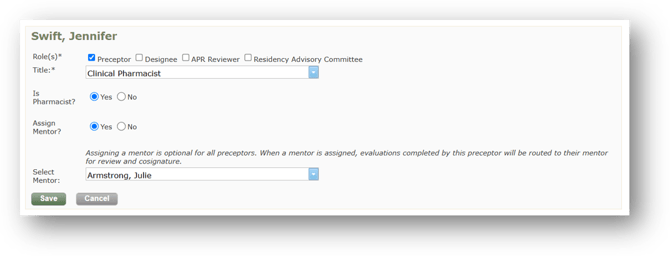
- Select the appropriate PharmAcademic Role(s) for this user:
- Preceptor
- Designee
- APR Reviewer
- Residency Advisory Committee (RAC)
- Select the preceptor/staff member’s Title from the drop-down box. If the correct title is not listed, select Other and enter the specific title.
- Indicate if the user is a pharmacist.
- Select if you want the preceptor to be assigned a mentor. If you select yes, select the mentor from the drop-down menu. Note: Assigning a mentor is optional for all preceptors. When a mentor is assigned, evaluations completed by the preceptor will be routed to their mentor for review and cosignature.
- Click the Save button.
Instructions for Updating Preceptor and Staff Information
Only Preceptors can update their own profile information, including their name and email address. RPDs and Designees can update a user's PharmAcademic roles.
To update a user’s role:
- Click the Manage Program button.
- Select the Preceptors and Staff tab.
- Click Edit next to the user’s name.
- Update the information.
- Click the Save button.
The preceptor will receive an email confirming they have been added to your program, along with instructions for accessing PharmAcademic.