
Building a resident schedule allows users to create, edit, and update resident schedules with learning experiences and non‑learning experiences, assign start and end dates, designate preceptors, and manage schedule changes throughout the residency year.
This task can be completed by users with the “RPD” or “Designee” role.
Before You Begin: Ensuring the Correct Learning Experiences are Available for Scheduling
Status: Learning experiences must be active and include at least one objective marked as taught and evaluated before they can be added to a resident’s schedule.
CAGO Version: If your program includes multiple CAGO versions, ensure the appropriate CAGO version is selected on the learning experience before scheduling it for a resident.
Important: After you create or edit a resident schedule, go to the resident’s Evaluations tab to verify that all evaluations appear as expected.
Instructions for Accessing a Resident’s Schedule
- Go to “Access My Sites/Programs” and select the program.
- Select the Residents tab.
- Select the resident’s name.
- Select the Schedule tab.
Additional Home Page Navigation Options:
- RPDs, Designees, and Preceptors can access a resident’s schedule from the My Residents tab on the Home page.
- Residents can view their schedules from the My Schedule tab on the Home page.
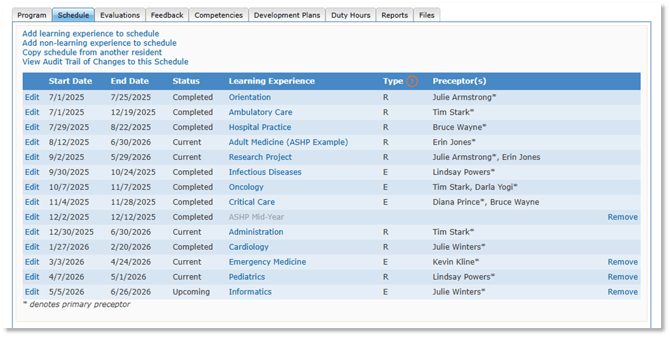
Instructions for Adding a Learning Experience to a Schedule
- Click the “Add learning experience to schedule” link.
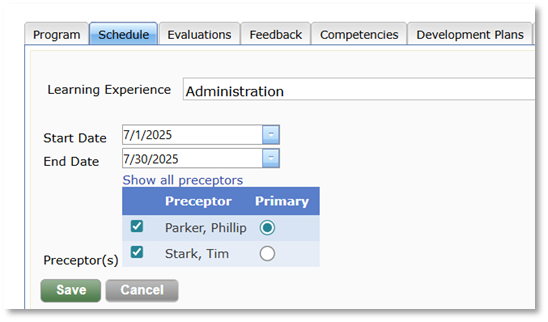
- Select learning experience from the drop-down menu.
- Enter the Start Date and End Date.
- Select one or more Preceptor(s).
Preceptors listed on the learning experience’s Preceptor tab are available by default. Click the “Show all preceptors” link to view a list of all preceptors in your residency program. - Select the Primary preceptor.
Learning experiences with multiple preceptors complete team-based evaluations. While all preceptors receive a summative evaluation to complete, the primary preceptor is responsible for marking ACHR and submitting the final evaluation on behalf of the team.
- Click the Save button.
Evaluations are automatically scheduled for the resident and assigned preceptors using the learning experience’s start and end dates and the ASHP Accreditation Standard for Postgraduate Residency Programs to schedule the appropriate evaluations with the correct due dates.
It may take several minutes for evaluations to appear after saving. You can edit the scheduled learning experience once evaluations are generated.
Instructions for Adding a Non‑Learning Experience to a Schedule
Non‑learning experiences are used to track time blocks, such as maternity leave, so that the resident’s schedule in PharmAcademic accurately reflects their time in the program. Evaluations are not scheduled for non‑learning experiences.
- Click the “Add non‑learning experience to schedule” link.
- Enter a Description.
- Enter a Start Date and End Date.
-
Click the Save button.
Instructions for Copying a Schedule from Another Resident
Schedules can be copied from another resident who is enrolled in the same program and assigned the same CAGO version. Dates are adjusted automatically to fit within the resident’s enrollment period.
- Click the “Copy schedule from another resident link.”
- Select the name of the resident whose schedule you wish to copy from the drop-down box.
- Select the learning experiences to copy.
- Click the Save button.
- Review copied dates and preceptors to ensure accuracy.
Instructions for Updating a Resident’s Schedule
Editing a Learning Experience
- Select Edit next to the learning experience.
- Update the Start Date, End Date, or Preceptor(s) as needed.
- Click the Save button.
Evaluation due dates and evaluators (preceptors) are updated automatically.
Important: Overdue summative evaluations are not rescheduled automatically. Use the Generate On Demand button to reschedule them if needed.
Removing a learning Experience
Click the Remove link next to the learning experience. Learning experiences cannot be removed from a resident’s schedule if an evaluation has already been submitted. Contact "support@mccreadiegroup.com" for assistance.
Viewing Schedule Changes
Click the “View Audit Trail of Changes to this Schedule” link.
A history of schedule changes is displayed.
Related Documentation