
PharmAcademic automatically schedules co-signature tasks based on the evaluation type, whether the evaluation is associated with a learning experience, and the program's RPD co-signature settings.
Cosignature tasks are completed by Residents, Preceptors and RPDs.
Before You Begin
- An evaluation’s cosign history can be viewed at the bottom of the submitted evaluation (Resident Evaluations tab of the Resident Viewer) or in the Evaluation Response Report on the Evaluation Reports tab (Manage Program > Evaluation Reports).
- The assigned cosigner receives an email notification when a co-signature task is available, and the evaluator receives a notification once the co-signature is completed.
- Co-signature requirements vary depending on the evaluator and whether the evaluation is associated with a learning experience. See the table below.
Co-signature Requirements
Evaluations Associated with a Learning Experience
PharmAcademic automatically assigns co-signature tasks based on the evaluator's role.
|
Evaluator |
Required Co-signature Path |
|
Resident |
All Preceptor(s) assigned to the learning experience on the resident’s schedule |
|
Preceptor |
Resident |
|
Preceptor with an assigned mentor completing a summative evaluation |
Preceptor's Mentor → Resident |
|
On-demand evaluation with co-signatures selected |
Follows the applicable co-signature path above |
|
On-demand evaluation without co-signatures selected |
No co-signature assigned |
Evaluations Not Associated with a Learning Experience
Evaluations that are not associated with a learning experience are routed to the RPD for co-signature.
Instructions for Completing a Co-signature Task
- Locate the cosign task on the PharmAcademic Home page. Evaluations requiring cosigns will be displayed with “Cosign” as the type. You will also receive an email notification to alert you of the task.
- Click on the name of the task. It will open as a single-page, view-only document. At the end of the document, you will see the cosign history, and you will have the option to cosign or send the evaluation back for edit.
- Click the Cosign button.
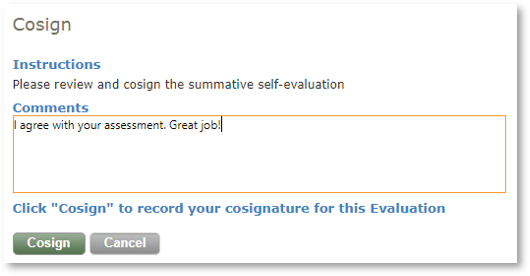
- Add Comments, if desired. Note: If comments are added, they will be included in the notification email message to the evaluator.
- Click the Cosign button.

Related Articles
Send Back for Edit