
Copying a learning experience allows users to reuse existing learning experience details rather than creating a new one, within the same program or in another program at the same site.
This task can be completed by:
- Users with the “RPD” role
- Users with the “Designee” role
- Users with the “Preceptor” role when “Allow Preceptors to Add and Edit Learning Experiences” is selected for the residency program, and the preceptor is listed on the learning experience’s Preceptor tab
Before You Begin: How Copying Works
A learning experience can be copied to the same program or to a different program at the same site. You cannot copy learning experiences to programs at different sites.
- Same Program: Copying a learning experience to the same program copies overview information, educational objectives, learning activities (including mappings to educational goals and objectives), scheduled evaluations, and assigned preceptors.
- Different Program at the Same Site: Copying a learning experience to a different program copies overview information (the “Type” copies, but the “Group” does not), scheduled evaluations, and preceptors if the preceptor is associated with the other program. Selected educational objectives and learning activities (including mappings) are not copied.
Important: Once a learning experience is copied, the original and copied learning experiences are separate records. Updates made to one learning experience do not affect the other.
Instructions for Copying a Learning Experience
- Select the Learning Experiences tab.
- Select View next to the learning experience name.
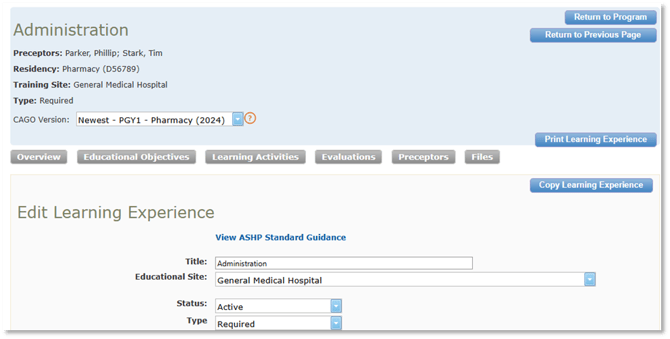
- Click the Edit Learning Experience button.
- Click the Copy Learning Experience button.
- Enter a New Title.
- Select the Program to Copy To. You can copy the learning experience to the same program or a different program at the same site.
- Click the Save Copy button. You are placed in edit mode for the copied learning experience.
- Update the learning experience and click the Save button, or click the Close button to exit edit mode.
Related Documentation
- Adding a Learning Experience
- Editing a Learning Experience
- Viewing the Learning Experience Evaluation Schedule
- Updating Program Information & Options
- Designating a Learning Experience Type