Editing a learning experience allows users to update learning experience details such as objectives and activities for current and future resident schedules.
This task can be completed by:
- Users with the “RPD” role
- Users with the “Designee” role
- Users with the “Preceptor” role when “Allow Preceptors to Add and Edit Learning Experiences” is selected for the residency program and the preceptor is listed on the learning experience’s Preceptor tab
Important: Editing a learning experience updates the existing record. If you are making significant changes and want to preserve the original version, create a copy of the learning experience before editing.
Before You Begin
How Edits Are Applied to Learning Experiences
When you edit a learning experience, updates affect scheduled learning experiences differently depending on the tab being updated and the status of the learning experience on a resident’s schedule.
Overview, Educational Objectives, Learning Activities, and Evaluations Tabs
- Updates are applied automatically to learning experiences that you schedule in the future.
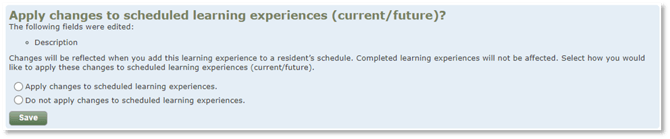
- When saving changes, you may choose to apply updates to existing resident schedules (current or future learning experiences.)
- Updates are not applied to completed learning experiences.
Files Tab: Learning experience files are added to a resident only when the learning experience is added to the resident’s schedule.
Preceptors Tab: Changes to preceptors do not affect resident schedules.
How Edits Are Applied to Evaluations
Evaluation Tab: Removing an evaluation does not remove it from previously scheduled learning experiences. To remove an evaluation from an existing resident schedule, you must remove it directly from the resident’s Evaluation tab.
Educational Objectives Tab: If you choose to apply objective updates to previously scheduled learning experiences, only evaluations that have not been started are updated.
Instructions for Editing a Learning Experience
- Select the Learning Experiences tab.
- Select View next to the learning experience name.
- Select the Edit Learning Experience button.
- Verify that the appropriate Competency Areas, Goals and Objectives (CAGOs) are selected in the CAGO Version drop down list if you have multiple sets of CAGOs at your program. Note: This selection will affect the Educational Objectives and Learning Activities tabs only.
- Select a tab to edit learning experience information.
- Update the learning experience information as needed.
- If prompted, select how you would like to apply the updates.
- Click the Save button.