The Evaluation Search and Reports page allows you to search, view, and download data from all evaluations across your program in one location. Use this page to define the evaluation data you want to include in a report, including resident, preceptor, learning experience, and custom evaluations.
This task can be completed by:
- Residency Program Director
- Designee
- ASHP Surveyor
Before You Begin: Examples of Reports
On this page, you can run reports to:
- Analyze one subject over time, for example, view Preceptor Evaluation responses for a preceptor over the past 5 years.
- Compare multiple items, for example, see how several residents evaluated a learning experience.
- View comments from supporting preceptors that weren’t included in the final summative evaluation for team-based summative evaluations. This data is found in the Summative Evaluation All Team Responses report, the only PharmAcademic report that includes this information.
- View evaluation cosign comments. This data is found in the Evaluation Response Report, the only PharmAcademic report that includes this information.
- Review data gathered via custom evaluations. This is the only page where custom evaluation data can be downloaded into reports.
Instructions for Generating Evaluation Reports
1. Access the Residency Evaluations Search Page
You can access the page using either of the following methods:
- Manage Program button > select the Evaluation Reports tab.
- Dashboards button > Select the Evaluations Tools tab > Click the Go to Evaluations Search and Reports link (This is the only access path available to ASHP Surveyors.)
2. Search for the Data you want to view and include in reports
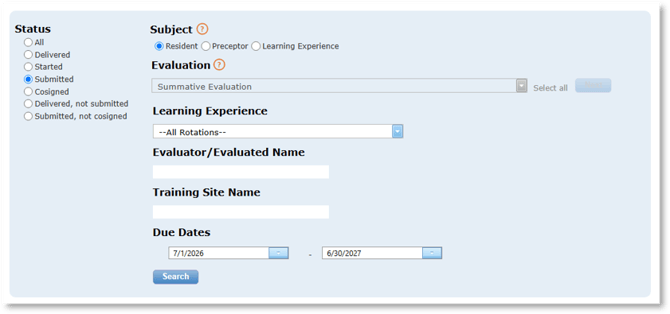
- Select the Status of the evaluations: All, Delivered, Started, Submitted, Cosigned, Delivered, not submitted, or Submitted, not cosigned.
- Select the Subject of the evaluation: Resident, Preceptor or Learning Experience. Note: The subject of the evaluation is who or what is being assessed.
- Select one or more evaluation(s) in the Evaluation drop-down box. Note: If you select multiple evaluations, some reports will not be available.
- Click the Next button.
- Optional: Filter the results using the Learning Experience, Evaluator/Evaluated Name, Training Site Name and/or the Due Dates.
- Click the Search button. Click the New Search button to modify the filters and search again.
3. Select the “View.”
|
View |
Functionality |
|
Summary |
View graphs that summarize the status and history of the evaluations found by the search criteria. |
|
Grid |
|
|
Reports |
Download reports with data from evaluations found by the search criteria. |
4. Select and download the Report.
- View the report description.
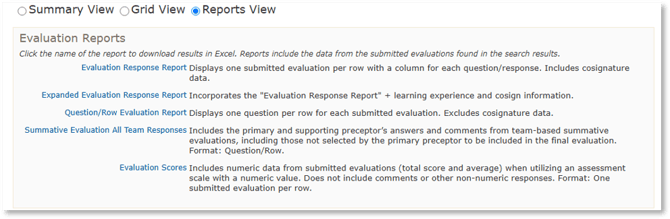
- Click the name of the report to download results in Excel. Reports include the data from the submitted evaluations found in the search results.
Evaluation Response Report: Displays one submitted evaluation per row with a column for each question/response. Includes co-signature data.
Expanded Evaluation Response Report: Incorporates the "Evaluation Response Report" + learning experience and cosign information.
Question/Row Evaluation Report: Displays one question per row for each submitted evaluation. Excludes co-signature data.
Summative Evaluation All Team Responses: Includes the primary and supporting preceptor’s answers and comments from team-based summative evaluations, including those not selected by the primary preceptor to be included in the final evaluation. Format: Question/Row.
Evaluation Scores: Includes numeric data from submitted evaluations (total score and average) when utilizing an assessment scale with a numeric value. Does not include comments or other non-numeric responses. Format: One submitted evaluation per row.