
The Generate On-Demand Evaluation feature allows users to create additional evaluations for individual residents. Evaluations can be associated with a learning experience or created outside of a learning experience when appropriate. Available evaluation types include resident, preceptor, learning experience, and custom evaluations.
This task can be completed by the RPD, Designee, or Preceptors for residents/learning experiences on their schedule.
Before You Begin
-
Custom evaluations must be configured for the appropriate evaluation type before they can be selected.
-
Standard reminder schedule applies (3 days prior to due date, 3 days after, and every 7 days following the due date on a weekly basis until the evaluation is submitted.)
Instructions for Accessing the Generate On-Demand Button
On-Demand evaluations are scheduled one-by-one and are associated with an individual resident.
- Select the Residents tab.
- Click on the name of the resident.
- Select the Evaluations tab.
- In the Select Learning Experience drop-down box:
- Select the name of the learning experience to schedule an evaluation associated with a learning experience.
- Select “Evaluations Not in a Learning Experience” to schedule an evaluation not associated with a learning experience.
- Click the Generate On-Demand Evaluation button.
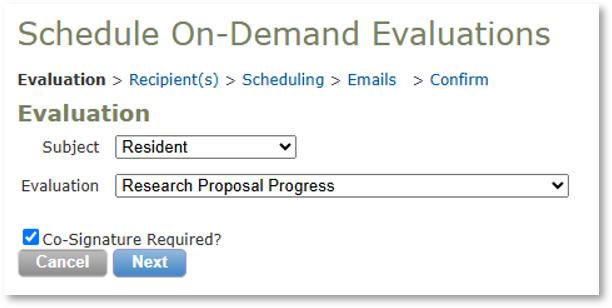
Instructions for Generating an On-Demand Evaluation for a Learning Experience
SUBJECT OF EVALUATION: RESIDENT
- Select “Resident” in the Evaluation Type drop-down box.
- Select the name of the Evaluation.
- Select if Cosignature Required. Note: If the preceptor is the evaluator, the resident will cosign. If the resident is the evaluator, the preceptor will cosign.
- Click the Next button.
- Select Evaluators. Note: For summative evaluations, the evaluator will automatically be selected for you based on the resident’s schedule.
- Click the Next button.
- Enter a Delivery Date and a Due Date. Click the Next button.
- Select whether to Send Email Notifications and Reminders. Click the Next button.
- Confirm the selections for the on-demand evaluation and click the Finish button.
SUBJECT OF EVALUATION: PRECEPTOR
- Select “Preceptor(s)” in the Evaluation Type drop-down box.
- Select the name of the Evaluation.
- Select the preceptor(s) who will be the subject of the evaluation.
- Select if Cosignature Required.
- Click the Next button.
- Enter a Delivery Date and a Due Date. Click the Next button.
- Select whether to Send Email Notifications and Reminders. Click the Next button.
- Confirm the selections for the on-demand evaluation and click the Finish button.
SUBJECT OF EVALUATION: LEARNING EXPERIENCE
- Select “Learning Experience” in the Evaluation Type drop-down box.
- Select the name of the Evaluation.
- Select the Learning Experience Being Evaluated.
- Select if Cosignature Required.
- Click the Next button.
- Enter a Delivery Date and a Due Date. Click the Next button.
- Select whether to Send Email Notifications and Reminders. Click the Next button.
- Confirm the selections for the on-demand evaluation and click the Finish button.
Instructions for Generating an On-Demand Evaluation Not Associated with a Learning Experience
- Select “Resident” in the Evaluation Type drop-down box. Note: Only “Resident” type evaluations can be scheduled outside of a learning experience.
- Select the name of the Evaluation.
- Select if Cosignature Required. The RPD will be the cosigner.
- Click the Next button.
- Select Evaluators.
- Click the Next button.
- Enter a Delivery Date and a Due Date. Click the Next button.
- Select whether to Send Email Notifications and Reminders. Click the Next button.
- Confirm the selections for the on-demand evaluation and click the Finish button.