
Inactivating a learning experience allows users to keep historical information without making the learning experience available for scheduling. This is useful when a learning experience is no longer used but should be retained for reference or reporting purposes.
An inactive learning experience can be viewed on the Learning Experience tab by selecting “Show Inactive Learning Experiences,” and can be made active again at any time.
This task can be completed by:
- Users with the “RPD” role
- Users with the “Designee” role
- Users with the “Preceptor” role when “Allow Preceptors to Add and Edit Learning Experiences” is selected for the residency program and the preceptor is listed on the learning experience’s Preceptor tab.
Before You Begin: How Inactive Learning Experiences are Displayed
- Resident Schedules: Inactive learning experiences are not available for selection when adding learning experiences to a resident’s schedule.
- Learning Experiences Page: Inactive learning experiences are hidden from the learning experience list unless you select “Show Inactive Learning Experiences.”
- PharmAcademic Reports: Inactive learning experiences do not appear in reports.
Instructions to Inactivate a Learning Experience
- Select the Learning Experiences
- Select View next to the name of the learning experience.
- Select the Edit Learning Experience
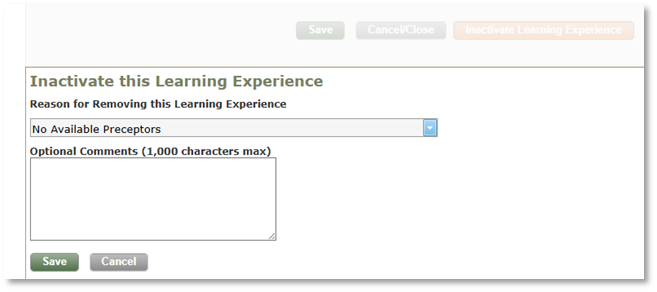
- On the Overview tab, scroll to the bottom of the page and click the Inactive Learning Experience
- Select a Removal Reason:
- Content No Longer Relevant
- Duplicate
- No Available Preceptors
- Replaced with Updated Learning Experience
- Enter Optional Comments.
- Click the Save button.
Instructions to Reactivate a Learning Experience
- Select the Learning Experiences tab.
- Click “Show Inactive Learning Experiences.”
- Select View next to the name of the learning experience.
- Click the Reactivate Learning Experience button.
