
The Resident Files tab stores files associated with a specific resident. There are Competency folders and a Miscellaneous folder for resident-specific files that are not tied to a competency area.
This task can be completed by:
- RPD
- Designee
- Preceptor (if they are on the resident’s schedule)
- Resident (for their own files)
- RAC (view access only)
Before You Begin
- There is a folder for each Competency Area from the resident’s Required Competency Areas, Goals, and Objectives (CAGOs), allowing resident deliverables to be organized by competency.
- ASHP recommends including the associated objective number in the file name (for example, 1.4.2 - Updated Treatment Protocol).
- File size is limited to 25MB per file.
- Accepted file formats are Microsoft Word (.doc/.docx), Excel (.xls/.xlsx) and Powerpoint (.ppt/.pptx), Zip files (.zip), and Adobe Acrobat (.pdf) files.
Important: Do not upload Personal Health Information (PHI) to PharmAcademic.
Instructions for Adding a Resident File
-
Click the Residents tab.
-
Select the resident’s name.
-
Click the Files tab.
-
Add file to appropriate folder:
-
To upload a resident deliverable, click the Add Files link next to the appropriate Competency Area.
-
To upload any other resident-specific document, click the Add File link next to Miscellaneous Files.
-
-
Enter File Comments (optional).
-
Click Choose File, select the file from your device, and then click Upload.
Instructions for Deleting a Resident File
To delete a file, click the Delete link next to the file.
- RPDs and Designees can delete files for current residents.
- Preceptors and Residents can delete only files they uploaded.
Instructions for Accessing Resident Files
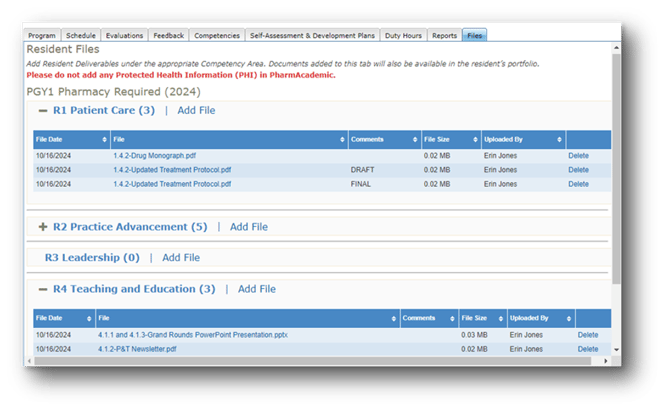
Resident’s Files Tab (Current Resident)
Files added to the Files tab are available to users with access to the resident’s information.
- Use the plus (+) and minus (-) icons to expand or collapse Competency Area folders.
- The number displayed next to a Competency Area indicates how many files have been added to that folder.
- Files are displayed on the Files tab with the Date the file was added, the File name, Comments (if added), the Size of the file, and who the file was Uploaded By.
- Click a column heading to sort files.
Resident Portfolio (Current and Closed Out Residents)
Files added to the Files tab are also available in the resident’s Portfolio for current and closed-out residents. The resident’s certificate, added during the close-out process, is also available in the Portfolio.
Resident’s Files Tab (Closed Out Resident)
The Files tab remains available to the RPD and Designee after a resident has been closed out. There are no time restrictions on adding files after close out.
After close out, an additional section called Resident Close-Out Files appears on the resident’s Files tab. This section contains documents related to the resident close-out process.
Note: Files added to the Resident Close-Out Files section are not visible to the resident and do not appear in the Portfolio. If you do NOT wish for a closed out resident to have access to a file, add it to the Close-Out Files grid.