
Use these instructions to monitor resident progress and view or update ACHR status for educational objectives. These tasks can be completed by the RPD or Designee.
Before You Begin
- Educational objectives can be marked Achieved for Residency (ACHR) two ways in PharmAcademic: within summative evaluations, if “Allow ACHR to be Set During Summative Evaluations” is selected on the Program Details tab and on the resident’s Competencies tab.
- On the Competencies tab, RPDs and Designees can mark and update the ACHR status for an individual objective or multiple objectives associated with a goal at one time.
- Objectives that have not been evaluated via a summative evaluation cannot be marked ACHR.
- When all objectives for a goal are marked ACHR, the goal is automatically marked as Achieved.
Instructions for reviewing and updating ACHR Status
Access the Goal or Objective
- Select the Residents tab.
- Click on the name of the resident.
- Select the Competencies tab.
- Click the desired set. (Required, Elective or Resident-Specific)
- Click on the Goal to update multiple objectives associated with the goal and/or click on the objective’s identifier number (for example, R1.1.1) to update the specific objective.
View Updates on the Resident’s Progress
After accessing a goal or objective, select one of the following radio buttons to view information associated with the goal/objective:
- Criteria
- Summative Evaluations
- Formative Evaluation (Feedback)
- Evidence (portfolio item added by resident and mapped to objective)
- Reflections (portfolio item added by resident and mapped to objective)
- Activities (portfolio item added by resident and mapped to objective)
- ACHR History
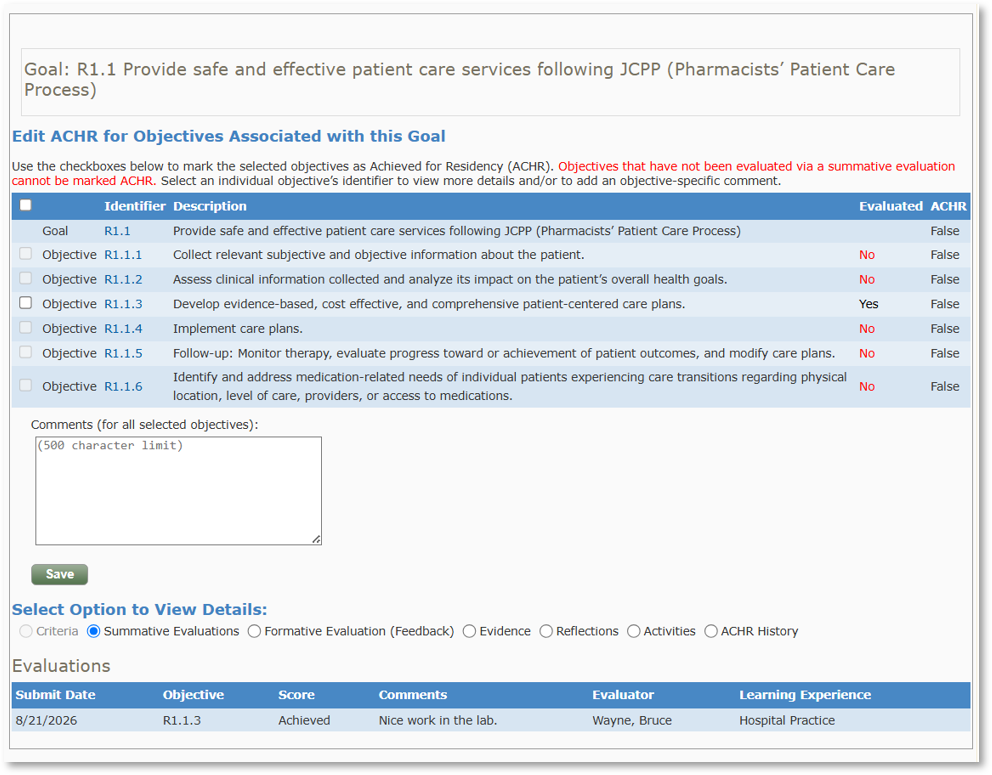
Mark ACHR for Multiple Objectives Associated with a Goal
- Click on the Goal to access.
- On the grid, review for each objective if it was evaluated via a summative evaluation and the ACHR status.
- Select the objectives that you would like to mark ACHR. Note: Objectives that have not been evaluated via a summative evaluation cannot be marked ACHR. You will not be able to select them to mark ACHR, however, you can click on the objective’s identifier to access the objective-specific page to add a comment.
- Enter Comments, if desired. Note: Comments entered on this page will be applied to all the selected objectives. If you want to add an objective-specific comment, please click on the objective’s identifier and add a comment on the objective-specific page.
- Click the Save button.
Marking ACHR for a Single Objective
- Click on the objective’s identifier number.
- Click the Edit ACHR for this Objective button.
- Select ACHR. Note: You can also update the status to “Not ACHR” to change the status or to enter a comment.
- Enter Comments, if desired. Note: You can enter comments without changing the ACHR status, for example, if an objective has not been evaluated. Comments are viewable on the resident's progression reports.
- Click the Save button.
Instructions for Viewing ACHR Status in PharmAcademic
You can view ACHR status on the following:
- Summative evaluations. Note: Goals and objective marked as ACHR will appear on future evaluations with a green ACHR flag indicating that they have been achieved.
- When you view or cosign an evaluation, if the preceptor has marked an objective as ACHR, “Evaluator marked Goal as Achieved for Residency” will be written above the goal/objective.
- The resident’s Program Details tab.
- The Resident tab on the program dashboard.
- Resident-specific reports located on the resident’s Program Details tab.
- TE Assignment Report
- Goals and Objectives with Evaluation Responses
- Average Monthly Summative Scores
- ACHR History
Related Articles
-
Completing the Summative Evaluation and Updating ACHR Status