
Use this page to view, add, edit, and remove post-residency tracking records for residents who have completed a residency program. Post-residency tracking records allow programs document employment and other activities after residency completion.
This task can be completed by the RPD or Designee.
Before You Begin
- Post-Residency Tracking records are only available after a resident has completed the program and has been closed out of PharmAcademic. The program completion record is automatically created and cannot be removed.
- Post-Residency Tracking records are visible to all programs in which the resident has been or will be enrolled.
Instructions for Accessing Records
- On Screen: Post-residency tracking records can be accessed by clicking the Manage Program button, going to the Residents tab, and clicking the Post Residency Tracking link.
- Report: The “Post Residency Tracking” report is available to the RPD/Designee) on the residency program Report page. This report includes the Post Residency Tracking records for all closed out residents.
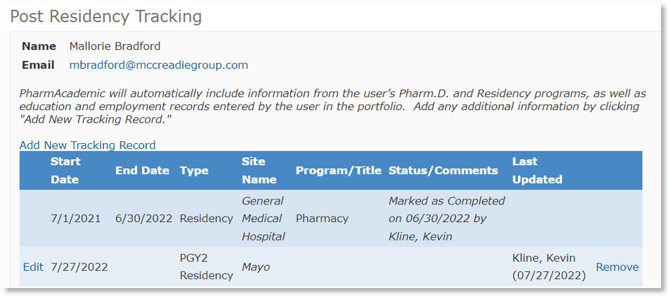
Instructions for Viewing and Adding Post-Residency Tracking Records
The program completion record will be automatically listed and cannot be removed. Employment information will be listed for any resident that was closed out after 2018. This information was gathered during the PharmAcademic close-out process.
- Go to the Residents tab and click the View Closed Out Residents button. Note: you may need to extend the search dates.
- Click on the Post Residency Tracking link.
- To add a new record, click Add New Tracking Record.
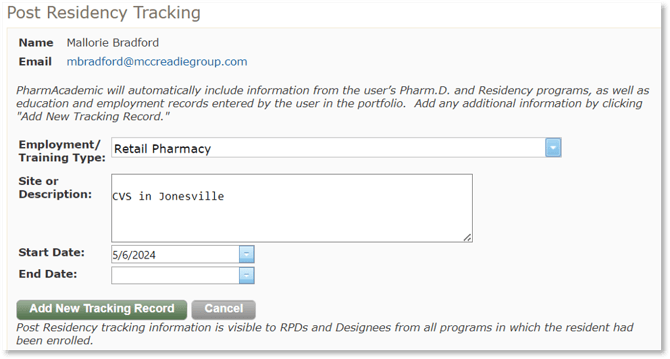
- Select an Employment/Training Type from the drop-down box (REQUIRED).
- Enter Site or Description.
- Enter a Start Date.
- Enter an End Date.
- Click the Add New Tracking Record button.
- Click the Close button when you are finished adding tracking information.
Instructions for Editing or Removing Records
Note: Post Residency Tracking records can only be edited by the RPD or Designee at the site where the record was originally created.
- Navigate to the resident's Post Residency Tracking records.
- Click the Edit link to update a record.
- Click the Remove link to delete a record.