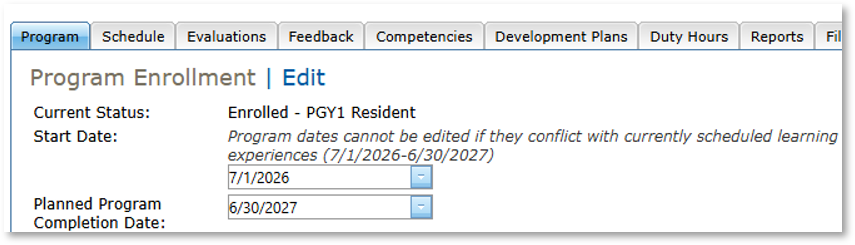
During resident enrollment, the RPD or designee selects the resident's program dates. This task allows those dates to be updated if needed.
This task can be completed by the RPD or Designee.
Before You Begin
- Learning experiences must fall within the resident's program dates. You cannot shorten the program dates if any scheduled learning experiences extend beyond the new dates.
- The Planned Program Completion Date must be extended if you need to extend a learning experience or the resident’s program.
Instructions for Updating a Resident’s Program Dates
- Access your program.
- Select the Residents tab.
- Select the name of your resident.
- Click the Edit link next to "Program Enrollment" on the resident’s Program tab.
- Enter/select new dates in the Start Date and/or Planned Program Completion Date.
- Click the Save Program Edit button.