
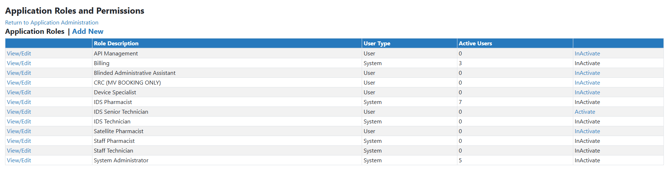
Vestigo comes standard with 6 default application roles which can be assigned to a user in a facility. A user may have a combination of roles between facilities such as Billing in IDS Pharmacy but not Park IDS Pharmacy. Each role has a permission set that is associated with that role.
In some situations, sites may need to add custom site-specific roles with their own unique permission sets to fine tune control of the application. When sites create custom roles, they are defined in the Application Role grid with the word User in the User Type column.
Permissions Needed
AdminMain – Access the application administrative menu
ApplicationRolesPermissions - Allows the user to add or edit application security roles and permissions for those roles
Adding a New Application Role
All new application roles will default to No Access on existing competencies, and it is recommended to adjust the default settings for the new role in App Admin.
Application roles cannot be deleted once created. They can only be deactivated for future use.
- Hover your mouse over Main at the top right of the screen and click on Application Administration
- Click on the Manage Application Roles and Permissions under User Accounts and Security
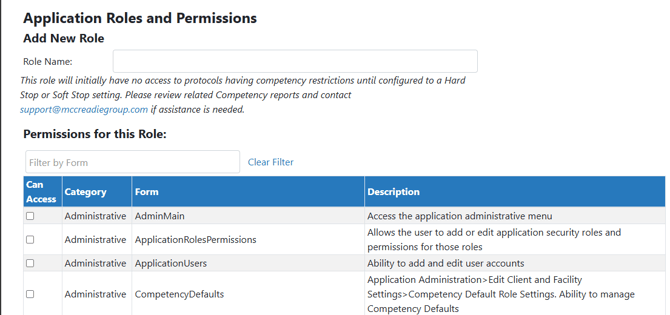
- Click on Add New
- Add a unique name for this role
Reminder - Roles are facility based. You can create a custom role and apply it to a user in any facility.
- Define the permissions that will be allowed for this role by checking the acceptable permissions.
- Define when a user can perform quality checks
If your site does not utilize Quality Checks, then you can skip this section and leave as the defaults.
- Click Save
Once the application role has been created, you can start assigning this role to users in facilities.