DARF notes can be used to utilized however the site would like to. This is generally recommended when you need to document something important relating to that drug build. When users add a DARF note to an inventory, it is visible on the DARF for every location that that drug build has been stored, unless added to a specific inventory ID.
Required Permissions
ProtocolSnapshot - Ability to view the Summary page of a Protocol (Protocol Snapshot). Required for all other protocol view permissions.
Inventory - Allows a user to view the View/Edit screen on the Inventory tab on a protocol.
Examples of DARF Note Applications
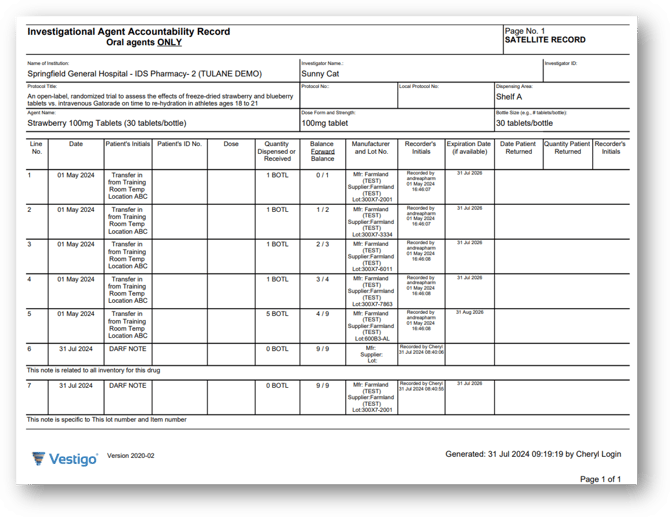
In the image below, Line 6 shows a what a note for the whole inventory would look like. You can see this is a DARF note as denoted in the Patient's Initials column as DARF NOTE. It is going to show 0 BOTL in the quantity dispense or received, and there will be no information in the MFR, supplier, or lot number and item. If you backdated the service date, the date may appear different than what is in the recorder’s initials column for timestamp. You can see the DARF note below.
Now on Line 7, we have an inventory specific DARF note along with a note specific to a lot/item number. You can tell this is inventory specific as it has all of the above information, but this time, it has information relating to the MFR, supplier, and lot and item number. Again, you can see the DARF note below.
Adding a DARF Note
- Navigate to the protocol
- Users may have to complete any competencies that are associated with the protocol.
- Click on the Inventory Tab
- Click on View/Edit Inventory
- Select the Drug from the drop down menu
- Click on Add DARF Note
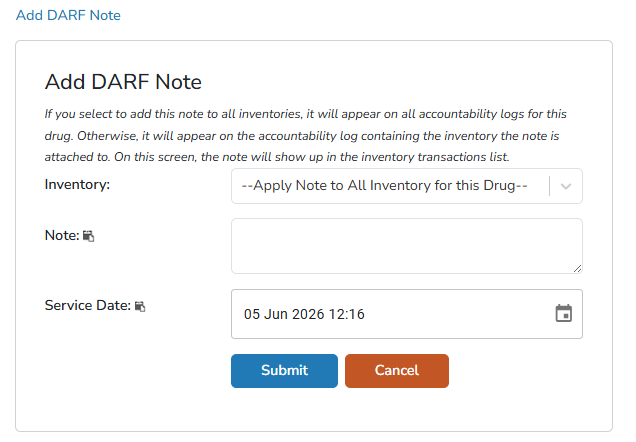
- Select the inventory to which the note will apply to
- Apply Note to All Inventory for this Drug - If a note applies to the entire drug, it will appear once on each DARF. If the inventory has been located in several different locations, it will appear on each of those DARFs.
- Specific Inventories - If a specific inventory item is selected, the note will appear only once, either above or below the inventory.
If a note applies to multiple inventories rather than the entire drug, a separate note must be entered for each inventory.
- Enter the Note you wish to record
- The Service Date defaults to the current date and time, but can be modified as needed. This setting determines the placement of the note on the DARF.
- Click Submit
Once a DARF note has been added, it cannot be deleted.
Editing a DARF Note
If a DARF note needs to be edited, the user can do so by navigating to the DARF Note Transaction.
- Navigate to the protocol
- Users may have to complete any competencies that are associated with the protocol.
- Click on the Inventory Tab
- Click on View/Edit Inventory
- Select the Drug from the drop down menu
- Select the Txns link to the left side.
- If the inventory is no longer on hand, the user will need to uncheck the box for Status, then select the Txns link.
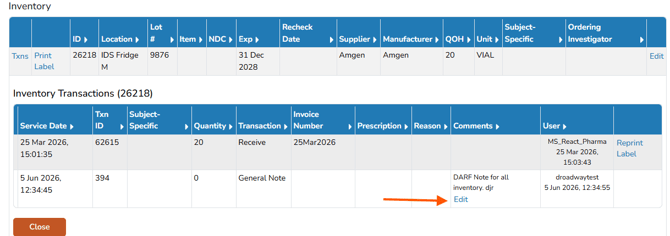
- When the Txns link is selected, the transactions for that item will display below. On the right side of the transaction is a column for Comments. Within the Comments is a small link to Edit.
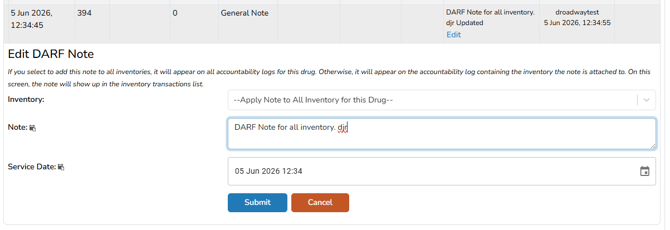
- When that edit link is selected, the DARF Note will open below for modification.