
Required Permissions
InventoryAdjustment - Ability to do an inventory adjustment
ViewInventory - View inventory in a protocol
Introduction
There are various reasons to use Adjust Inventory. A few of those examples are:
- Received incorrectly or too much: decrement an amount to correct the inventory count
- Expired or Otherwise Unusable Inventory: decrement inventory moved to a disposition in Manage Drug Returns
- Inventory received into the wrong protocol: decrement full amount received
- Moving inventory from one protocol to another: decrement in one protocol and receive in the correct protocol
Adjustments can be made on a single inventory item or multiple inventory items using the Bulk Adjust option. Most often, Adjust Inventory will be used to decrement quantity, however it can be used to increase the quantity as well.
After an adjustment is saved, a validator appears on the screen, and the inventory dropdown updates to show the next available inventory. If no inventory remains for that drug, the inventory field displays “no inventories available”.
With single inventory adjustment, you can change either some or all of the inventory (e.g., adjust 10 out of 20 bottles or all 20). Using bulk adjust, only the entire quantity can be changed; partial adjustments are not allowed.
Contents
Adjustment Reasons and Drug Build Requirements
Before we cover the actual adjustment, it's important to understand the two categories of Adjustment Reasons:
-
Inventory that does not require a disposition selection to decrement or increment inventory.
-
Inventory that requires a disposition selection that can be viewed in Manage Drug Returns
When adjusting inventory, you need to consider if a final disposition is needed or not. If you choose a reason to that does not require a final disposition, you will not be able to generate a Certificate of Destruction or Return to Sponsor.
Inventory decremented without a final disposition—often due to data entry errors like receiving into the wrong protocol—is a permanent adjustment that cannot be reversed.
To learn more about managing Adjustment Reasons, check out this article.
If a disposition of the inventory is necessary, you must select an appropriate destination: Quarantine, Record Destruction, or Record Return to Sponsor. In cases where Quarantine Verification is required for the drug build, the sole available option is to "Send to Quarantine for later review and processing.
If the option to require a Destruction Authorization Number or Return to Sponsor Shipment Number has been selected on the drug build, the field we will be a requirement when documenting the prescription return for destruction or return to sponsor.
There is also a field when marking a return for destruction, for the Destruction Bin Number. This field can be used to track waste bins for destruction.
If the quantity of inventory is simply being removed from stock, any reason that does not produce a disposition selection box can be used.
Adjusting or Quarantining Inventory
It may be necessary to receive approval from all required parties prior to quarantining any inventory or taking any follow up actions such as destruction. Please check with your site SOPs prior to proceeding.
- Navigate to the protocol.
- Click on the Inventory Tab.
- Click on Adjust Inventory.
- Select the Drug from the drop down menu.
Additionally, you can also add a filter by lot number here as well.
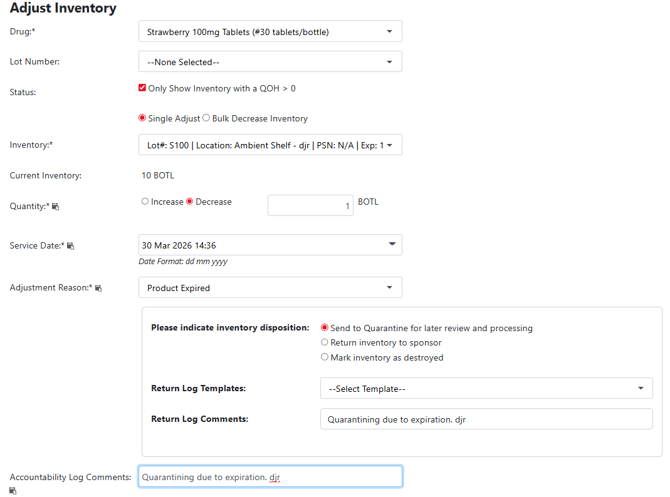
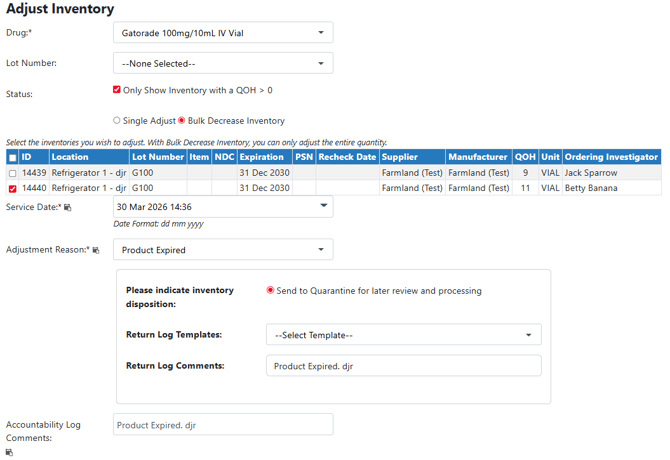
- Select Either Single Adjust or Bulk Decrease Inventory and follow the appropriate instructions below.
Single Adjust
- Select the Inventory from the dropdown menu
- Select the option for Decrease
- Enter the Quantity
- If needed, adjust the Service Date
- Select the Adjustment Reason
If the adjustment reason does not require the user to select a inventory disposition, the adjustment will be irreversible once saved.
- Select the Disposition
- Send to Quarantine for later review and processing - Choose this option to send the inventory the protocols quarantine for later processing and review.
- Return inventory to sponsor - Choose this option if you are returning inventory to sponsor or a depot and want to complete the transaction in combination of the inventory adjustment. Add in all necessary information relating to the return to sponsor such as Return Shipment Number, Courier, Return To Sponsor Comments, etc.
- Mark inventory as destroyed - Choose this option if you are destroying the inventory and want to complete the transaction in combination of the inventory adjustment. Add in all necessary information relating to the return to sponsor such as Method of Destruction, 3rd Party Vendor, Destruction Comments, etc.
If the only disposition that can be selected is "Send to Quarantine for later review and processing", that means the inventory uses Return Verification and another user must verify the inventory prior to selecting the final disposition.
- If needed, enter any Return Log Comments.
These will appear on the Manage Drug Returns Screen and can also appear on the DARF.
- It is recommended to add accountability log comments about the transfer.
- If needed, adjust the number of Labels and Printer.
- Click the blue Save button.
If you selected a reason that required a final disposition, the quarantined inventory will now be visible in Manage Drug Returns.
Bulk Decrease Inventory
- Select the check boxes next Inventory from the dropdown menu
Bulk Decrease Inventory adjusts down all selected inventory. If you only need to adjust down inventory in smaller increments, please use the Single Adjust pathway.
- If needed, adjust the Service Date
- Select the Adjustment Reason
If the adjustment reason does not require the user to select a inventory disposition, the adjustment will be irreversible once saved.
- Select the Disposition
- Send to Quarantine for later review and processing - Choose this option to send the inventory the protocols quarantine for later processing and review.
- Return inventory to sponsor - Choose this option if you are returning inventory to sponsor or a depot and want to complete the transaction in combination of the inventory adjustment. Add in all necessary information relating to the return to sponsor such as Return Shipment Number, Courier, Return To Sponsor Comments, etc.
- Mark inventory as destroyed - Choose this option if you are destroying the inventory and want to complete the transaction in combination of the inventory adjustment. Add in all necessary information relating to the return to sponsor such as Method of Destruction, 3rd Party Vendor, Destruction Comments, etc.
If the only disposition that can be selected is "Send to Quarantine for later review and processing", that means the inventory uses Return Verification and another user must verify the inventory prior to selecting the final disposition.
- If needed, enter any Return Log Comments.
These will appear on the Manage Drug Returns Screen and can also appear on the DARF.
- It is recommended to add accountability log comments about the transfer.
- If needed, adjust the number of Labels and Printer.
- Click the blue Save button.
If you selected a reason that required a final disposition, the quarantined inventory will now be visible in Manage Drug Returns.