
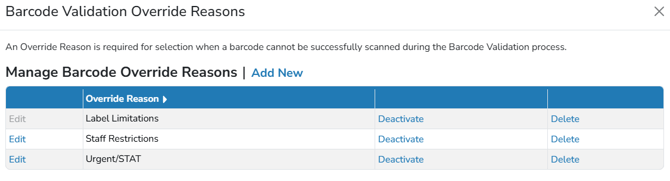
While all attempts should be made to validate inventory during dispensation, in some situations, it may not be possible. Vestigo allows users with the correct permissions to override the validation. Be default, sites have no Barcode Override Reasons and must be created by the site. This is due to differing organization policies and to accommodatedate as many workflows as possible.
Required Permissions
AdminMain - Access the application administrative menu.
EditClientandFacilitySettings - Ability to edit client information under "Edit Client and Facility Settings" page.
ManageBarcodeOverrideReasons - Ability to create, edit, and delete Barcode Override Reasons.
Accessing the Barcode Override Reasons
- Navigate to Application Administration
- Click on Edit Client and Facility Settings
- In Client Settings section on the right, locate and click on Barcode Validation Override Reasons
Creating a Barcode Override Reason
When creating a reason, it is recommended to keep it as short as possible. Things like Limited Staff, or Urgent are recommended, while still being descriptive. Users can enter comments when overriding a Validation to expand on the situation.
Tip - When creating reasons, be sure they comply with local organization policies.
- Navigate to Application Administration
- Click on Edit Client and Facility Settings
- In Client Settings section on the right, locate and click on Barcode Validation Override Reasons
- Click Add New
- Enter a Description for the override reason. This reason will be visible in the application and on reports.
- Leave the Is Active flag checked.
- Click Submit
Editing or Deleting a Barcode Override Reason
Once a reason has been used within the application, users are not able to modify or delete the reason. This is by design to protect the integrity of previous validations where that override reason was used. Users can Inactivate the reason to prevent further usage.
Inactivating a Barcode Override Reason
If a reason is no longer needed by a site, the reason can be inactivated to prevent further use. When a reason is inactivated, users will no longer see the reason in the menu, but it will still show on reports where the reason was used.
- Navigate to Application Administration
- Click on Edit Client and Facility Settings
- In Client Settings section on the right, locate and click on Barcode Validation Override Reasons
- Locate the reason and Click Deactivate on that line item
If users need to reactivate an inactivated reason, they would follow the above but click Activate