
Sites can choose at the facility level to set a default printer for each facility. The printer selection can be overridden by the user during each transaction.
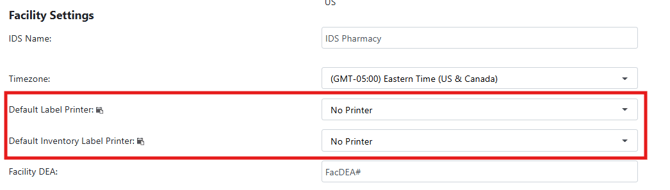
Default Label Printer
This printer is designated as the printer that will print labels when users process a dispense, reprint a dispense label, or if they record a dispense through the inventory adjust pathway. It will also be the defaulted printer if the user is to print a protocol or patient label.
The following types of labels default to this printer:
-
Protocol
-
Patient
-
Dispense
-
Prescription
-
Bag
-
Chain of Custody Labels
Default Inventory Label Printer
This printer is designated as the printer that will print labels when users process a transaction such as receive, adjust, or record inventory returns.
The following types of labels default to this printer:
-
Pick/Stock (receives or adjusts)
-
Inventory Returns
Permissions Needed
AdminMain – Access the application administrative menu
EditClientandFacilitySettings - Along with AppAdmin, this permission should enable/disable the "Edit Client and Facility Settings" page
FacilityEdit - Along with AppAdmin and EditClientandFacilitySettings access, this permission should enable/disable to view/edit facilities located under "Edit Client and Facility Settings" page
Users must have a role that has the FacilityEdit permission in the facility to make any modifications.
Modifying Printer Defaults for a Facility
- Navigate to Application Administration
- Click on Edit and Client Facility Settings
- Click on View/Edit on the appropriate facility
- Select the appropriate printer from the drop down for the printer type you want to modify
- Click Save