
It is best practice to ensure you use a strong and secure password to help protect your Vestigo account. Your password may also be required to be reset at an interval that is established by the local Vestigo Site System Administrator.
This article does not apply to sites that utilize Single Sign On (SSO) for Vestigo. If your site utilizes SSO, the password change policy is managed by your sites IT.
To determine if you are on SSO, navigate to your site's unique Vestigo URL. If the login states E-Mail, enter your email. If it automatically signs you in after email entry, then you are on SSO.
If you see any other login screen including username or a password entry is required, you are not on SSO.
Changing your password
- Hover your mouse over Main
- Click on My Account
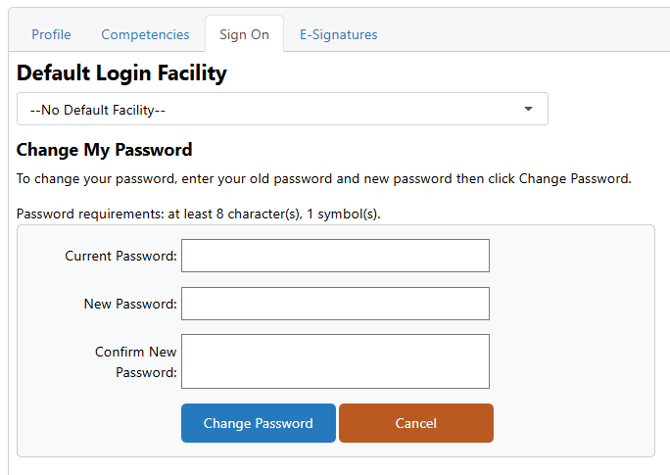
- Click on the Sign On tab
- Enter your current password
- Enter a new unique password in the New Password
- Re-enter the new password in the Confirm New Password
- Click Change Password
On your next login, you will want to use the newly established password going forward.