
Sites can set the default competency restrictions that populate when users create competency. Users can choose if the role should have a Hard Stop, Soft Stop, and No Access, that is populated by default. This is a client-wide setting. Settings are not unique to a facility.
Role Restriction Definitions
-
Hard Stop - Users must complete competency to access the protocol.
-
Soft Stop - User is prompted that a competency and is given the opportunity to view competency and files, record completion, or enter the protocol without completing (“bypass”).
-
No Access - Restrict certain user roles from a protocol in that facility. Attaching the competency will lock out the user and no opportunity is given to complete the competency.
Permissions Needed
AdminMain – Access the application administrative menu
EditClientandFacilitySettings - Along with App Admin, this permission should enable/disable the "Edit Client and Facility Settings" page
CompetencyDefaults - Application Administration > Edit Client and Facility Settings > Ability to manage Competency Defaults.
Default Values
By default, all roles will be set to Hard Stop.
Modifying the Role Defaults for Competencies
Modifying the defaults applies to new competencies only. It does not impact historical competencies.
- Navigate to Application Administration
- Click on Edit and Client Facility Settings
- Click on Competency Default Role Setting under Client Settings on the right side
- Locate the Role you want to adjust and select make the appropriate selection
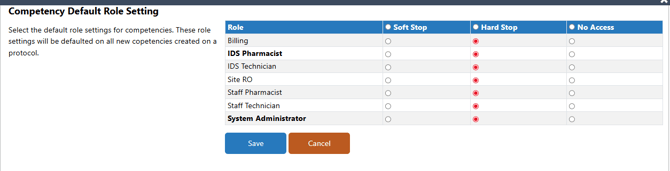
You can also select the column header to put all roles defaults to that column.
- Click Save
New Application Roles and Competencies
Some sites choose to add additional account level roles via Application Roles and Permissions. If a site chooses to do this, the role will default to No Access on all existing competencies, and the default for the new role will be No Access.