
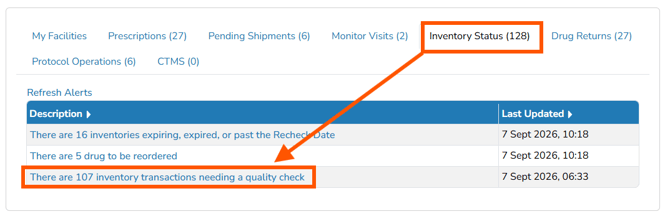
Users can access the facility specific quality checks from the alert queue. The Quality Check alert is nested under the Inventory Status section, and the alert is labeled as There are X number of inventory transactions needing a quality check.
Note - Additional inventory transactions can still occur against inventory whether or not the quality check has occurred. If a transaction is rejected during quality check, the transaction needs to be addressed manually. The original transaction is not cancelled/removed.
- In the Vestigo Alerts, click on Inventory Status
- Click on There are X number of inventory transactions needing a quality check
- The alert will populate, but users can optionally apply filters to narrow down the results
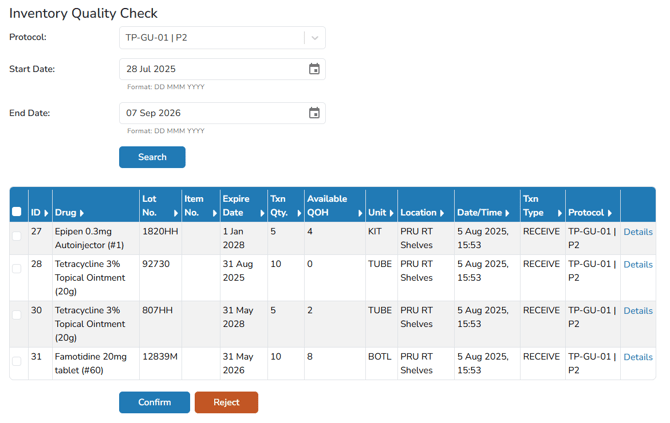
- Users can click on Detail on the right side to review additional information form the transaction. Users should review all appropriate information to ensure data accuracy during entry.
- If the transaction is correct:
- Check the line item
- Scroll down and click Confirm
- If a transaction has incorrect data:
- Check the line item
- Scroll down and click Reject
- User's should follow local policies on correcting the data for the transaction.
Caution - Rejecting a QC Transaction does not cancel the transaction. It only documents that the line item was reviewed by a second user and rejected due to data entry error.