
Creating a template allows users to drive consistency and efficiency by being able to use the same text over and over again without typing it each time. Vestigo Templates are text based only and cannot include any images.
Templates are site wide and can be used by any user.
Required Permissions
TemplateManager - Ability to manage templates under Protocol Management
Creating a Template
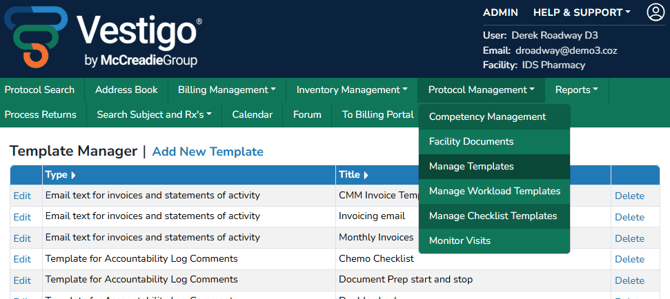
- Click on Protocol Management in the green global navigation banner
- Click on Manage Templates
- Click on Add New Template
- Select the Type of template you are creating from the drop down menu
The type of the template determines where the template can be used.
- Enter a Unique Title for the template. It is recommended to be brief, but descriptive with the title.
- Enter in the Template Text
- Click the blue Submit button
Editing a Template
Edits to a template allow users to keep using the same template with ease in case something changes on the template.
Edits to a Template do not impact historical transactions where the template was used. It will only be for future uses.
- Click on Protocol Management in the green global navigation banner
- Click on Manage Templates
- Locate the template you wish to edit and click on Edit
- Make the appropriate updates to the template as needed
- Click the blue Submit button
Deleting a Template
If you are no longer interested in using a specific template, you can delete the template to prevent it from being used again. Deleting a Template does not impact historical transactions where the template was used.
Deleting templates is permanent and site wide. It can also impact other user workflows.
- Click on Protocol Management in the green global navigation banner
- Click on Manage Templates
- Locate the template you wish to edit and click on Edit
- Make the appropriate updates to the template as needed
- Click the blue Submit button