
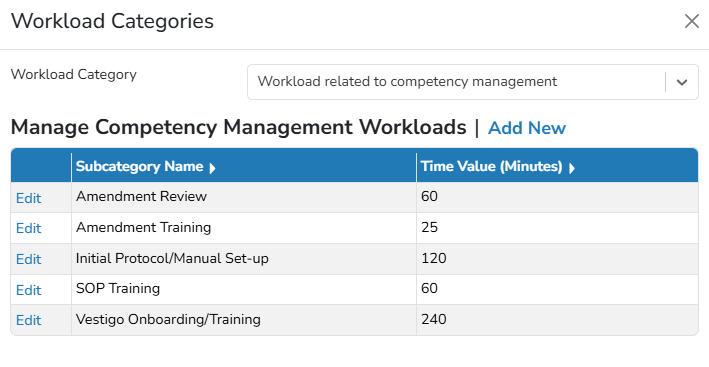
Subcategories nest under one of the 9 main Workload Categories. The subcategories allow users to create descriptive names that will be and be as ambiguous or as descriptive as possible. The time values set here are the default values for the subcategory. The subcategory can always be adjusted when added to a protocol, and again when recording the workload.
Required Permissions
WorkloadCategories - Application Administration>Edit Client and Facility Settings>Workload Categories. Ability to manage the workload categories
Other permissions may be required to access application administration.
Workload Categories
Vestigo provides the main Categories for all sites. These categories cannot be modified, but they determine where the workload can be applied. To learn more about the categories, please visit this page.
Creating a Workload SubCategory
- On the Vestigo home screen, click on Admin in the upper right.
- Click on Edit Client and Facility Settings
- Under Client Settings, click on Workload Categories
- Select a main Category from the drop down menu
- Click on the Add New link
- Enter a descriptive SubCategory Name
The name can be as ambigious or as granular as the site needs.
- Enter a default Time Value
The time value is only a default. It can always be adjusted once added to the protocol or when recording the workload.
- Click the blue Submit button
Editing a Workload SubCategory
Edits to a workload subcategory are not retroactive and only apply to protocols where the workload is added after the modification.
- On the Vestigo home screen, click on Admin in the upper right.
- Click on Edit Client and Facility Settings
- Under Client Settings, click on Workload Categories
- Select a main Category from the drop down menu
- Locate the SubCategory workload and click on the Edit link
- Make the appropriate updates as needed
- Click the blue Submit Button
Deleting a Workload SubCategory
Workload subcategories cannot be inactivated by the site. If a subcategory needs to be inactivated to prevent future use on future protocols, please contact us at support@mccreadiegroup.com.