
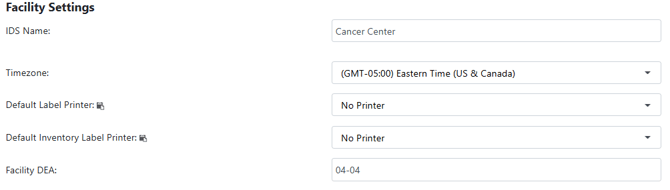
IDS Name
This is the name that is visible in the upper right corner of Vestigo for the Current Facility. It is also displayed when you login to Vestigo and have access to more than one facility.
Time Zone
Vestigo records time in UTC but visually adjusts the times to the local facilities time zone. This sets the time zone for the facility and adjusts all times to display with the correct time zone. This setting also impacts any place that shows time stamps, such as the DARF, reports, and even Vestigo Verify when a monitor generates the DARF.
Default Label Printer
Every Vestigo site comes with a No Printer option. However, once printers are added to your site, this can be adjusted at the facility level. Each facility could have its own printer and this can be set here.
The default label printer drives the default printer that is selected during dispense. This can be overridden during dispense by the user.
Default Inventory Label Printer
Every Vestigo site comes with a No Printer option. However, once printers are added to your site, this can be adjusted at the facility level. Each facility could have its own printer and this can be set here.
The default inventory label printer drives the default printer that is selected during any inventory transaction, such as receive, adjust, or edits. This can be overridden during the transaction by the user.
Facility DEA
By default, there will be no information in this field. However, sites can add the DEA number to the facility settings. This number will appear on various reports throughout Vestigo.
Permissions Needed
AdminMain – Access the application administrative menu
EditClientandFacilitySettings - Along with AppAdmin, this permission should enable/disable the "Edit Client and Facility Settings" page
FacilityEdit - Along with AppAdmin and EditClientandFacilitySettings access, this permission should enable/disable to view/edit facilities located under "Edit Client and Facility Settings" page
Users must have a role that has the FacilityEdit permission in the facility to make any modifications.
Modifying Facility Information
- Navigate to Application Administration
- Click on Edit and Client Facility Settings
- Click on View/Edit on the appropriate facility
- Make the appropriate modifications
- Click Save