Generating a DARF is one of the most important parts on a protocol and Vestigo supplies a variety of DARF formats to meet everyone's needs and requirements.
To learn more about the types of DARF reports, please reference this article.
Control vs Satellite Record DARF
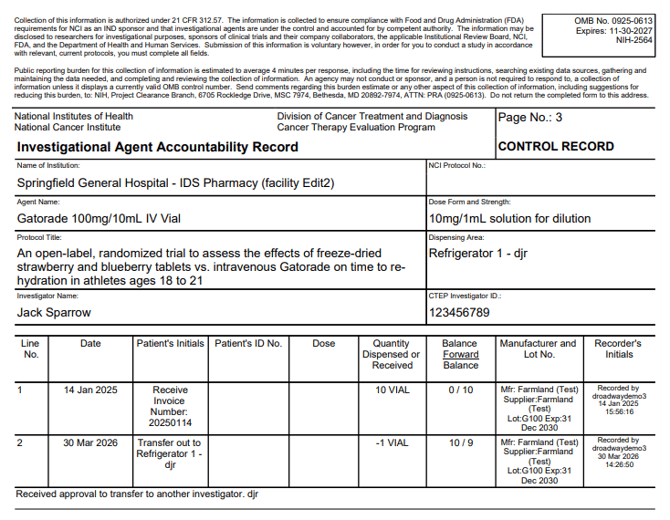
When downloading some formats of the Drug Accountability Record Form (DARF), users will see either “Control Record” or “Satellite Record” in the top right corner. The Control Record will be associated with the location deemed as the “Control Inventory Location” on the Drug Build. The DARF designated as the “Satellite Record” will be any location that is not the “Control Inventory Location”.
If the facility uses the “Parent/Child Inventory Location” option, the “Control Record” will be associated with the “Parent” location. Each “child” location under that “parent” will not be a separate DARF. Any locations not associated with that “Parent/Child” set up, will be a “Satellite Record”.
When changing the Drug Build “Control Inventory Location” to a new location, the previous control location will then be a “Satellite Record” DARF moving forward. There can only be one “Control Record” DARF.
Please see our manual in Application Administration called “Application Admin Facility Parent Child Inventory Locations” for more about “Parent/Child Inventory Location”.
Generating a DARF
- Navigate to the protocol
- Click on the Inventory Tab
- Click on Drug Accountability Records
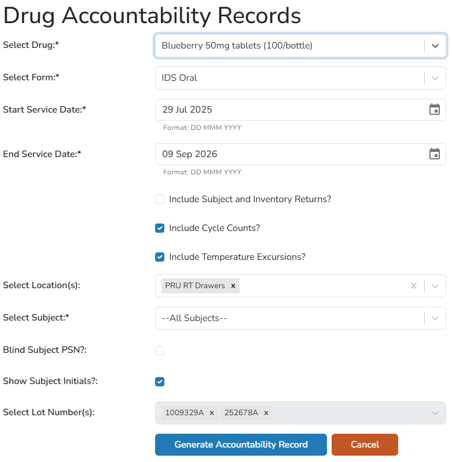
- Select the Drug from the dropdown menu
- Select the DARF Form Type. To learn more about the types of DARFs, please reference this article.
- Adjust the Start Service Date as needed. This field automatically defaults to the first day inventory was received on the protocol.
- Adjust the End Service Date as needed. This field automatically defaults to the current day.
- Check or Uncheck the three flags that determine what additional information the DARF should add.
- Include Subject and Inventory Returns - Will add additional information to dispenses and quarantines about any returns recorded and current disposition.
- Include Cycle Counts - If the site records cycle counts, you can check this setting to have the cycle counts added as line items.
- Include Temperature Excursions - If your site has recorded any Temperature Excursions using the Temperature Excursions pathway, you can check this setting to have those added as line items.
If Cycle Counts and Temperature Excursions are unchecked, you may have inconsistent line numbers on the DARF. Cycle counts and Temperature excursions are designated as a transaction and will appear as their own line number.
- Select the Location(s). By default, all locations will be selected, but locations can be unchecked if needed.
- If needed, select the participant from the Subject dropdown, or leave as the default. The form generation will default to --All Patients/Subjects--, which is the most common DARF.
- Check or Uncheck Blind Subject PSN.
- This will default to the current protocol setting, but can be adjusted by site IDS pharmacy at time of generation. If checked, the Participant PSNs will show as Blinded PSN.
- Check or Uncheck Show Subject Initials.
- This will default to the current protocol setting but can be adjusted by site IDS pharmacy at time of generation. If the master client override setting to not show subject initials is in use at your site, then no DARF can be generated with subject initials by IDS or Verify users.
- Click the blue Generate Accountability Record
- The DARF will download as a PDF Attachment that can generally be opened in any major browser.