
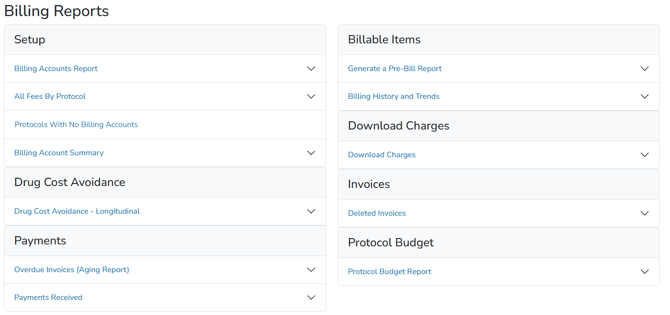
This article provides an overview of Vestigo’s global billing reports, including where to access them and the permissions required to generate report data across facilities. These reports offer visibility into billing accounts, protocol fees, overdue invoices, payments received, pre-bill charges, billing history, and budget information. Together, they support financial oversight, accountability, audit readiness, and informed decision-making across the organization.
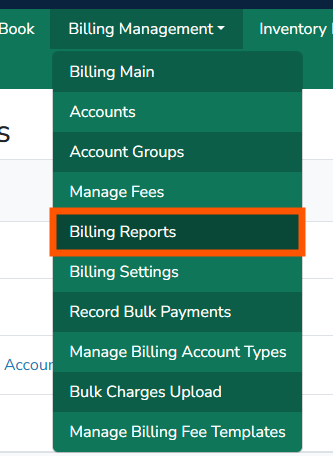
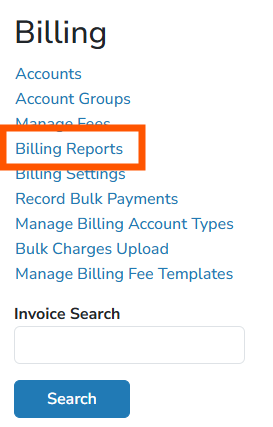
There are two ways to access the global billing reports. Users can click on Billing Management > Billing Reports, or they can click on Billing Management > Billing Main > Billing Reports
Required Permissions
BillingMain - Main menu for billing setup and invoice management.
Note - Users will need a role with the permission per facility they should have access to in order to generate certain reports for that facility. If a user has a role with these permissions in less than all facilities at that client site, when they select “All Facilities”, the report will only include data for those facilities they have access to, not all facilities actually available within the client site.
| Report | Description | File Format |
| Billing Accounts Report | Lists all of the billing accounts within Vestigo. Includes active and inactive reports. | Spreadsheet |
|
All Fees By Protocol |
Lists all the fees by protocol in the application. The report is ordered by the incrementing ProtocolID value so newer protocols are at the end of the report. This report is a useful auditing report to review the billing settings and fees per protocol for any corrections. The report can be run by viewing Open, Closed, or All protocols. There is a column for fees, study number, and sponsor. |
Spreadsheet |
| Protocols With No Billing Accounts | A list of all protocols without an account. | Spreadsheet |
| Drug Cost Avoidance – Longitudinal |
This report lists out all the recorded drug cost avoidance data within Vestigo. The data is populated from selecting to record drug cost avoidance as part of an order definition. The values are then recorded each time the order is dispensed. This report requires additional settings established at each order build to be tracked. |
Spreadsheet |
| Overdue Invoices (Aging Report) | This report selects all overdue invoices in the system to allow the user to see who hasn’t paid their invoice. Clients must record payments in order for this report to be useful. | Spreadsheet |
| Payments Received | This report lists all out all the payments that have been recorded as received within Vestigo. | Spreadsheet |
| Generate a Pre-Bill Report | A pre-bill report is a list of pending charges that would go to invoice if the billing cycle ran at that point. It includes charges that are marked as To Be Billed and have a valid and billable account. Uncheck the box “Include Unbillable Items” to exclude charges in the Unbillable status. | Spreadsheet |
| Billing History and Trends | This report lists out the history of billed charges within the application. It includes all charges that have gone to invoice and a graph showing trends over time. | Spreadsheet |
| Download Charges | This report provides ability to download charges based on defined parameters for the charges needed. | Spreadsheet |
| Deleted Invoices | This report will display all invoices that have been deleted. The deleted invoices cannot be retrieved but this report will provide account number, invoice number, amount, date deleted, reason, and the user that deleted the invoice. | Spreadsheet |
| Protocol Budget Report | This report will display all budgets that have been created, and all data points for budget creation fields. The detailed version will include the same data, plus any fees that have been added to the budget(s). | Spreadsheet |
Tip - Files that can be downloaded as a spreadsheet allow the user to apply site filters or sorting.