
Sites can contract for an additional safety feature that Vestigo offers, Barcode Validation. If turn on at the order build level, this requires users to scan barcodes to validate the correct physical inventory was picked and matches the inventory used in Vestigo.
This article covers the creation of the Override Reasons that users can choose if they cannot validate the inventory. By default, there are no reasons provided, and sites must add the reasons manually.
Permissions Needed
AdminMain – Access the application administrative menu
EditClientandFacilitySettings - Along with App Admin, this permission should enable/disable the "Edit Client and Facility Settings" page
ManageBarcodeOverrideReasons - Ability to create, edit, and delete Barcode Override Reasons
Creating a Barcode Validation Override Reason
- Navigate to Application Administration
- Click on Edit and Client Facility Settings
- Click on Barcode Validation Override Reasons under Client Settings on the right side
- Click Add New
- Enter a name for the reason. This is visible in the application and on reports.
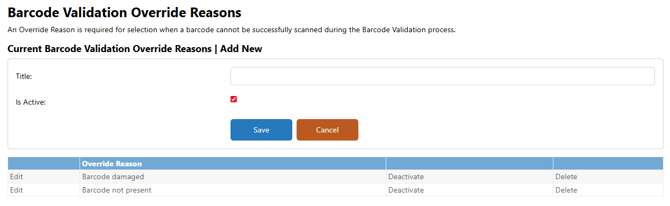
- Leave the Is Active flag checked
- Click Save
Repeat this step as many times to add all the necessary reasons.
Editing a Barcode Validation Override Reason
Once a reason has been used for a validation, you can no longer edit the reason.
- Navigate to Application Administration
- Click on Edit and Client Facility Settings
- Click on Barcode Validation Override Reasons under Client Settings on the right side
- Click Edit on the reason you wish to edit
- Apply the necessary changes
- Click Save
Inactivating a Barcode Validation Override Reason
Once a reason has been used, you can only inactivate the reason. Inactivating the reason prevents future use and does not impact historical transactions where the reason was used.
- Navigate to Application Administration
- Click on Edit and Client Facility Settings
- Click on Barcode Validation Override Reasons under Client Settings on the right side
- Click Deactivate on the reason you wish to inactivate
Reactivating a Barcode Validation Override Reason
- Navigate to Application Administration
- Click on Edit and Client Facility Settings
- Click on Barcode Validation Override Reasons under Client Settings on the right side
- Click Reactivate on the reason you wish to inactivate
Deleting a Barcode Validation Override Reason
Once a reason has been used, you can no longer delete the reason. There is no confirm screen when deleting a reason, and deletions are permanent.
- Navigate to Application Administration
- Click on Edit and Client Facility Settings
- Click on Barcode Validation Override Reasons under Client Settings on the right side
- Click Delete on the reason you wish to delete