
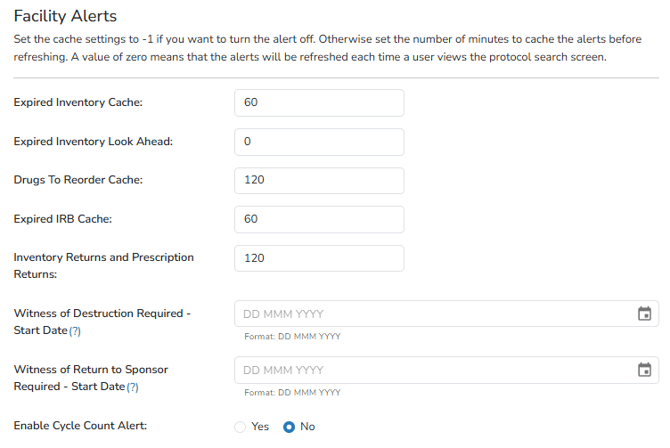
 Vestigo comes with alerts that can have their refresh intervals customized at the facility level. The first five options are numerical values in minutes.
The Witness of Destruction Required and Return to Sponsor Required - Start Dates are available to set for sites that are starting to require the witness functionality, but didn't at implementation. When a date is set here, the alert will ignore all destructions before the date defined. If this value is not entered, all final disposition actions that do not have a witness will be displayed.
The Enable Cycle Count Alert enables or disables the facility level cycle count alert. Works in conjunction with drug builds that require a cycle count at defined intervals.
Permissions Needed
AdminMain – Access the application administrative menu
EditClientandFacilitySettings - Along with AppAdmin, this permission should enable/disable the "Edit Client and Facility Settings" page
FacilityEdit - Along with AppAdmin and EditClientandFacilitySettings access, this permission should enable/disable to view/edit facilities located under "Edit Client and Facility Settings" page
Note - Users must have a role that has the FacilityEdit permission in the facility to make any modifications.
Modifying the Facility Alerts or Refresh Intervals
Setting any of the alerts to a value of -1 will disable the alert for the facility. If the value is set to 0, this means that any time a user opens the home page, the alerts with a 0 value will automatically update.
Tip - It is recommended to have these alerts run at designated intervals and not have them refresh each time a user loads the home page.
- Navigate to Application Administration
- Click on Edit and Client Facility Settings
- Click on View/Edit on the appropriate facility
- Modify the refresh intervals as needed
- Click Save