
Sites that upload documents to Vestigo can have the visibility defaulted based on their site's SOPs. If a file is uploaded with Visible to Monitor checked, then the file will be visible to a monitor during an active monitor visit. If the file is uploaded with Visible on Protocol checked, then the file will be visible on the Protocol Snapshot page.
All files uploaded to a protocol are visible when users are editing a protocol and they have a Document tab open.
When users upload a file, they have the choice to override the defaults and check or uncheck the visibility.
Permissions Needed
AdminMain – Access the application administrative menu
EditClientandFacilitySettings - Along with App Admin, this permission should enable/disable the "Edit Client and Facility Settings" page
FileVisibilityDefault - Grants the ability to set the default file visibility settings of documents on the protocol and facility level
Default Settings
Below are the default settings that every Vestigo site is created with.
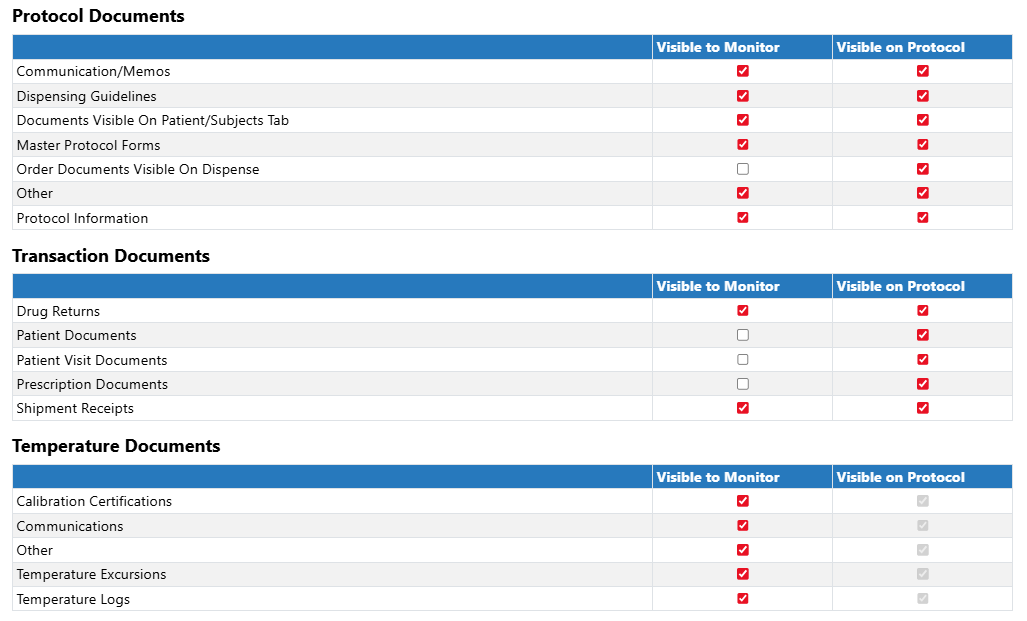
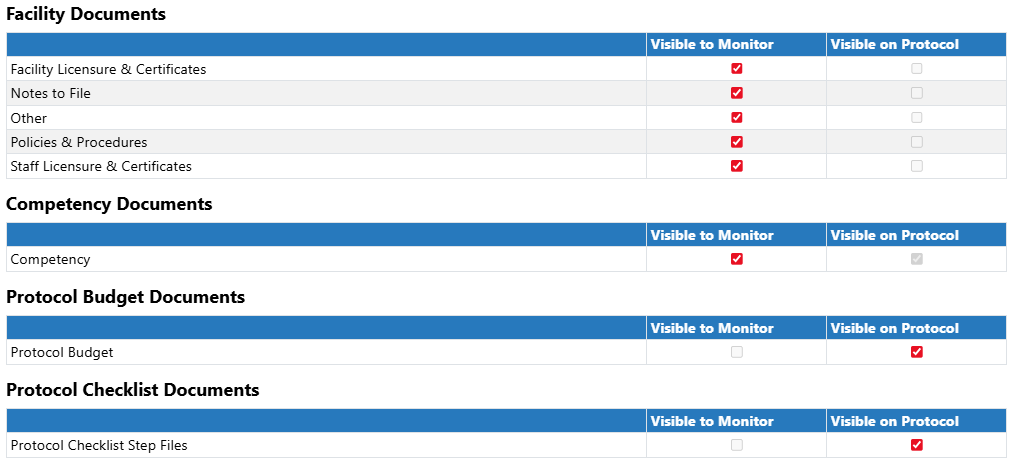
Modifying the File Visibility Defaults
Modifying the defaults do not impact historical files already uploaded. It only changes the defaults on new files uploaded after the modification.
- Navigate to Application Administration
- Click on Edit and Client Facility Settings
- Click on File Visibility Defaults under Client Settings on the right side
- Make the appropriate changes to the file type.
- Click Save