
- Adding an Inventory Adjustment Reason
- Modifying an Inventory Adjustment Reason
- Inactivated an Inventory Adjustment Reason
Permissions Needed
AdminMain – Access the application administrative menu
EditClientandFacilitySettings - Along with App Admin, this permission should enable/disable the "Edit Client and Facility Settings" page
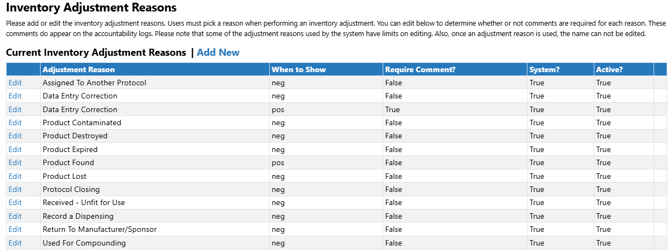
InventoryAdjustmentReasons - Application Administration > Edit Client and Facility Settings > Inventory Adjustment Reasons. Ability to view/edit/add inventory adjustment reasons.
Adding an Inventory Adjustment Reason
It is not recommended to add a Quarantine or Return from Quarantine adjust reason. Users should use the system provided quarantine pathway
- Navigate to Application Administration
- Click on Edit and Client Facility Settings
- Click on Inventory Adjustment Reasons under Client Settings on the right side
- Click on Add New
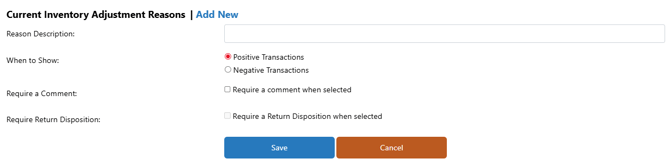
- Enter the description of the new Inventory Adjustment Reason.
- Select when to show the reason: Positive or Negative adjusts
If a reason needs to be created for both a positive and negative transaction adjust, you must create two reasons
- Optionally, you can require a comment to be entered at the time of the adjust.
- If the transaction is a negative transaction, you can optionally choose to require a return disposition of inventory for the adjustment. This forces the user to send the items to quarantine, destruction, or return to sender. Inventory with a disposition can be managed in Manage Drug Returns on the protocol.
If an inventory adjustment reason is used that does not require a return, users will be unable to reverse the inventory transaction, and the adjustment will be permanent. Monitor will not be able to authorize or cosign any destructions if no disposition is selected.
- Click Save
Editing an Inventory Adjustment Reason
Sites can modify system created Vestigo Adjustment Reasons, but it is limited to modifying when a return comment or return disposition is required.
Sites can modify site created reasons until the reason has been used in an adjust. Once the reason is used in an adjust, the reason name will become locked and can no longer be edited. You will still be able to modify when a return comment or return disposition is required, but it will not impact historical transactions where the reason was used.
- Navigate to Application Administration
- Click on Edit and Client Facility Settings
- Click on Inventory Adjustment Reasons under Client Settings on the right side
- Click on Edit for the Adjustment Reason you wish to edit
- Make the appropriate changes
- Click Save
Inactivating an Inventory Adjustment Reason
Sites cannot inactivate system created Vestigo Adjustment Reasons. Sites can only inactivate site created reasons. Inactivating a reason is permanent and cannot be reversed by the site
Inactivating a reason will not impact historical transactions where the reason was used.
- Navigate to Application Administration
- Click on Edit and Client Facility Settings
- Click on Inventory Adjustment Reasons under Client Settings on the right side
- Click on Inactivate for the Adjustment Reason you wish to inactivate
- Click OK to confirm the inactivation