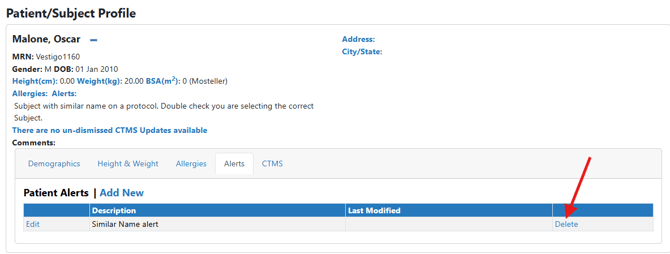
Patient alerts will pop up on users screen when they are processing a dispense to a patient. Alerts can be used for any reason a site decides, but most commonly is used for subjects with similar names.

Permissions Needed
AdminMain – Access the application administrative menu
EditPatientMaster - Ability to edit a patient master record
Adding a Patient Alert
Adding a Patient Alert can be done two ways.
Adding a Patient Alert from the Patient Master Record in Application Administration
- Hover your mouse over Main at the top right of the screen and click on Application Administration
- Click on the Patient Master under Client and Facility
- Search for your patient by entering their name or by Medical Record Number (MRN)
- Click the corresponding Search button
- Click on Edit for the participant you want to modify
- Expand the Alert section
- Click Add New
- Enter the information that you want to be present on the screen when the alert pops up
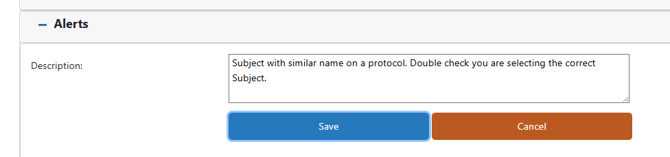
- Click Save
Adding a Patient Alert from the at the Patient/Subjects Tab on the protocol
- Navigate to the protocol where the subject is enrolled
- Click on the Patients/Subjects Tab
- Click on the Medical Record Number for the subject
- Click on the Alerts link in the subject information
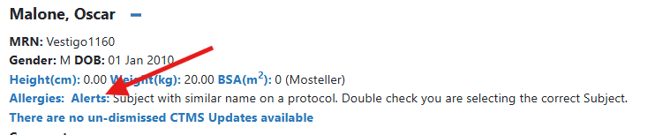
- Click on Add New
- Enter the information that you want to be present on the screen when the alert pops up
- Click Save
Editing a Patient Alert
Editing a Patient Alert can be done two ways.
Editing a Patient Alert from the Patient Master Record in Application Administration
- Hover your mouse over Main at the top right of the screen and click on Application Administration
- Click on the Patient Master under Client and Facility
- Search for your patient by entering their name or by Medical Record Number (MRN)
- Click the corresponding Search button
- Click on Edit for the participant you want to modify
- Expand the Alert section
- Click Edit for the alert
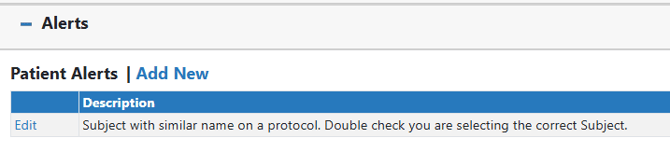
- Update the information that you want to be present on the screen when the alert pops up. Vestigo keeps the original information to allow users to add on to the original if needed. If information is removed, it will no longer show on the alert.
- Click Save
Editing a Patient Alert from the at the Patient/Subjects Tab on the protocol
- Navigate to the protocol where the subject is enrolled
- Click on the Patients/Subjects Tab
- Click on the Medical Record Number for the subject
- Click on the Alerts link in the subject information
- Click Edit for the alert
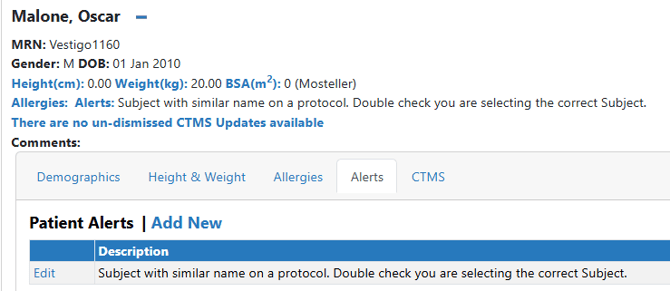
- Update the information that you want to be present on the screen when the alert pops up. Vestigo keeps the original information to allow users to add on to the original if needed. If information is removed, it will no longer show on the alert.
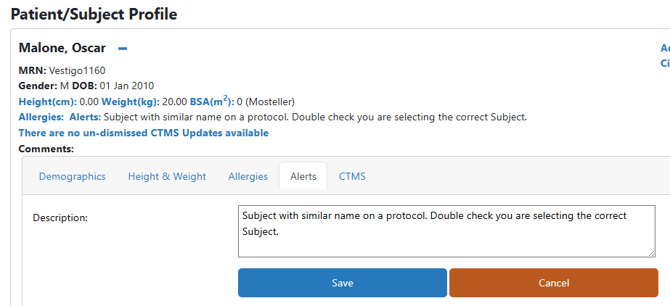
- Click Save
Deleting a Patient Alert
Deleting a Patient Alert can be done two ways.
Deleting a patient alert is permanent and cannot be reversed. There is no confirm screen when deleting a patient alert.
Deleting a Patient Alert from the Patient Master Record in Application Administration
- Hover your mouse over Main at the top right of the screen and click on Application Administration
- Click on the Patient Master under Client and Facility
- Search for your patient by entering their name or by Medical Record Number (MRN)
- Click the corresponding Search button
- Click on Edit for the participant you want to modify
- Expand the Alert section
- Click Delete for the alert you want to delete

Deleting a Patient Alert from the at the Patient/Subjects Tab on the protocol
- Navigate to the protocol where the subject is enrolled
- Click on the Patients/Subjects Tab
- Click on the Medical Record Number for the subject
- Click on the Alerts link in the subject information
- Click Delete for the alert you want to delete