
Vestigo allows sites to document on each protocol where the location of a physical binder is kept by the pharmacy. These locations are unique to the facility they are created in, and by default, there are no locations created.

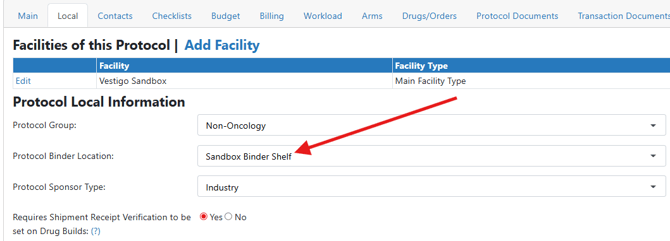
When editing a protocol, it can be selected from the local tab.
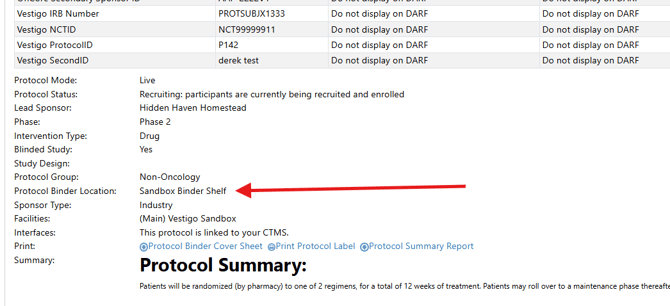
At Protocol Snapshot, it will show in the information on the Protocol Tab
Permissions Needed
AdminMain – Access the application administrative menu
EditClientandFacilitySettings - Along with App Admin, this permission should enable/disable the "Edit Client and Facility Settings" page
ProtocolBinderLocations - Application Administration > Edit Client and Facility Settings > View/Edit Facilities > Protocol Binder Locations. Ability to view/edit/add new protocol binder locations
Creating a Protocol Binder Location
- Navigate to Application Administration
- Click on Edit and Client Facility Settings
- Click on View/Edit on the appropriate facility
- Scroll down and click Protocol Binder Locations under Facility Items
- Click on Add New
- Enter a name for the location. This is visible in the application and on reports.
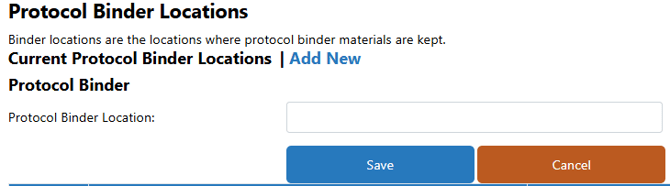
The location name should be unique to this facility. If you want IDS Pharmacy in each location, it is recommended to add a facility identifier before the location in the name.
Parks IDS Pharmacy
- Click Save
Repeat this step as many times to add all the necessary locations.
Editing a Protocol Binder Location
Once a location is used, it is not recommended to modify the overall meaning of the location. Modifying this does impact all protocols where this binder location was used.
- Navigate to Application Administration
- Click on Edit and Client Facility Settings
- Click on View/Edit on the appropriate facility
- Scroll down and click Protocol Binder Locations under Facility Items
- Click Edit on the location you wish to edit
- Apply the necessary changes
- Click Save
Deleting a Protocol Binder Location
Once a location has been added to a protocol, you can no longer delete the location. You must remove the location from all the protocols that used the binder location.
- Navigate to Application Administration
- Click on Edit and Client Facility Settings
- Click on View/Edit on the appropriate facility
- Scroll down and click Protocol Binder Locations under Facility Items
- Click Delete on the location you wish to delete
- Click OK to confirm the deletion