
Users with appropriate permissions are able to add or modify existing Protocol Groups.
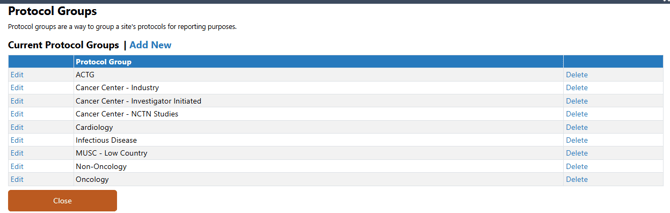
Permissions Needed
AdminMain – Access the application administrative menu
EditClientandFacilitySettings - Along with App Admin, this permission should enable/disable the "Edit Client and Facility Settings" page
ProtocolGroups - Application Administration > Edit Client and Facility Settings > Protocol Groups. Ability to manage protocol groups
Adding a Protocol Group
- Navigate to Application Administration
- Click on Edit and Client Facility Settings
- Click on Protocol Groups under Client Settings on the right side
- Click on Add New
- Enter the description of the new Protocol Group
- Click Save
Editing a Protocol Group
All edits cascade down to every protocol that uses the group
- Navigate to Application Administration
- Click on Edit and Client Facility Settings
- Click on Protocol Groups under Client Settings on the right side
- Click on Edit for the Protocol Group that needs to be modified
- Update the name as needed
- Click Save
Deleting a Protocol Group
There is no confirm screen for deleting a Protocol Groups and cannot be reversed by site or support. Protocols that used the Protocol Group will continue to use the Protocol Group until a user edits the Protocol - Local Tab
- Navigate to Application Administration
- Click on Edit and Client Facility Settings
- Click on Protocol Groups under Client Settings on the right side
- Click on Delete for the Protocol Group that needs to be deleted