
Vestigo’s document management module enables a paperless pharmacy binder, organizing files into clear sections. Features like drag-and-drop, filters, and pagination streamline navigation within the application.
Transaction Documents are associated to a specific transaction, such as an inventory receipt or dispensing. The files are reflected in the corresponding Document Section where they can be easily retrieved.
The documents cannot be added or deleted on the Transactions Tab, instead, these documents can be managed through the specific types of transactions listed below.
| Type | Where Managed |
| Prescription Documents | Managed at the patient profile for each unique Dispense. Can also be managed from Prescription Search function. |
| Shipment Receipts | Receive Inventory and Shipment Receive Search screens |
| Patient Documents | Patient Documents managed on the Patient/Subject tab |
| Patient Visit Documents | Documents added to unique patient visits . |
| Drug Returns | Managed in Manage Drug Returns. Documents are associated with individual returns. |
Vestigo supports up to a max of 50 MB per file, and a variety of file types that include: .doc, .docx, .pdf, .jpg, .jpeg, .png, .gif, .txt, .xlsx, .xls, .ppt, .msg, .ttv, .tiff, .pptx.
While Vestigo does support the ability to upload email messages in the .msg format, we strongly encourage users to save the email as a PDF prior to uploading to ensure the file can be viewed by all users.
Historical Shipments
For studies that were active prior to Vestigo Version 5.1 (July 2020), there is also a section for shipment receipts previously associated with a receive completed prior to Vestigo Version 5.0 (February 2020).
The Protocol and Transaction Documents tabs each contain a section for Historical Shipment Receipts. Documents grouped under Historical Shipment Receipts, whether within Protocol Documents or Transaction Documents, relate to received items and were added to Vestigo before February 2020. If the document source was “Transaction” (uploaded directly on the Receive screen), the document is now housed in Transaction Documents > Historical Shipment Receipts.
Permissions Needed
ProtocolSnapshot - Ability to view the Summary page of a Protocol (Protocol Snapshot). Required for all other protocol view permissions.
ProtocolDocuments - Ability to view and manage protocol documents in a protocol
EditTransactionDocuments - Ability to edit Transaction Documents tab
Contents
- Visibility Options
- Filters and Pagination
- Prescription Documents
- Shipment Receipts
- Patient Documents
- Patient Visit Documents
- Drug Returns
Visibility Options
When a file is added to Vestigo, it will have the client level default visibility options automatically set. These options are "Visible on Protocol" and "Visible to Monitor". When a File has the "Visible on Protocol" checked, the file is visible on the Protocol Documents or Transaction Docusments tabs at Protocol Snapshot. When a File has the "Visible to Monitor" flag checked, the file will be visible to monitors when they are reviewing the protocol during a routine Visit.
Some files may have both flags checked, some may only have one, and some may have none. If a file has no visibility flags checked, the file will always be visible when the user is in Protocol Management mode, or commonly referred to as Edit Protocol.
Visibility options can be modified directly on the Transactions Tab or at each individual section below. If you want to bulk update visibility for transaction documents, please reference this KB article.
Filters and Pagination
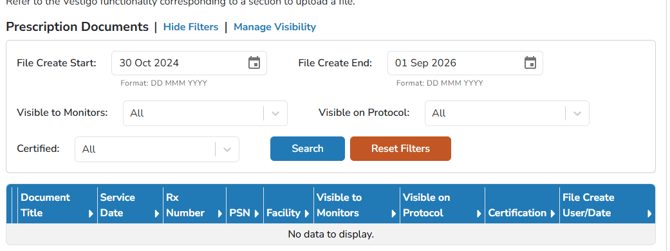
The link for “Hide/Show Filters” allows users to search and organize the documents that appear on the grid based on the filters applied.
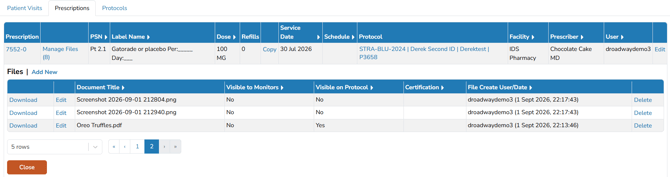
For categories containing numerous documents, the pagination feature located at the bottom of the section facilitates efficient navigation. Users may adjust the number of rows displayed per page by utilizing the dropdown menu positioned in the bottom left corner of the section.
Prescription Documents
These documents are added to individual dispenses when viewing a participant's profile. Files uploaded can be a copy of the Rx, or a worksheet that is unique to that dispense. There are a two ways to add documents to this section.
The first pathway is directly from the Participant Profile. Users would locate the dispense and click on Manage Files. The user can choose to upload a file, or they can create a file.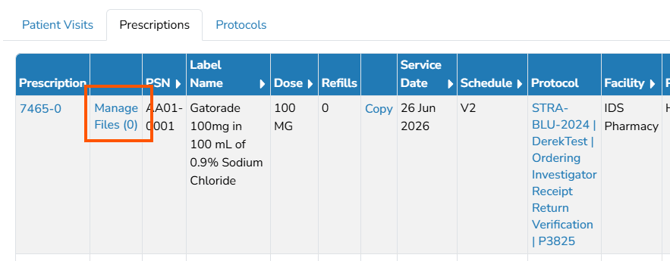
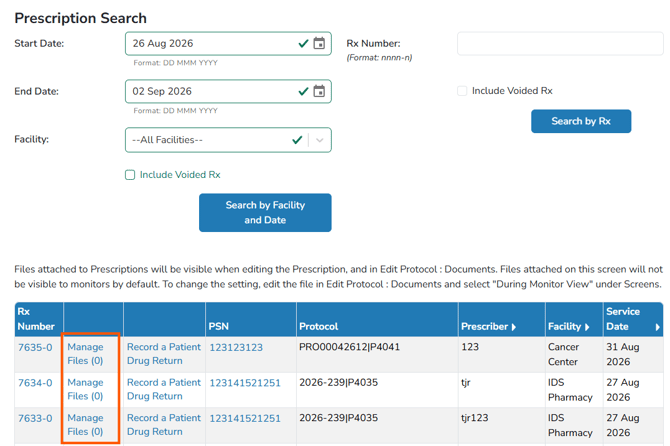
The second pathway is from the Prescription Search function. In the green global navigation menu, click on Search Subject and Rx's, then Search Prescriptions. Apply the appropriate filters then click the blue Search by Facility and Date button.
Shipment Receipts
These documents are added to individual shipment receipts. Files uploaded can be a copy of the shipment receipt paperwork, or even a temperature monitoring report from a device that is unique to that shipment. There are a two ways to add documents to this section.
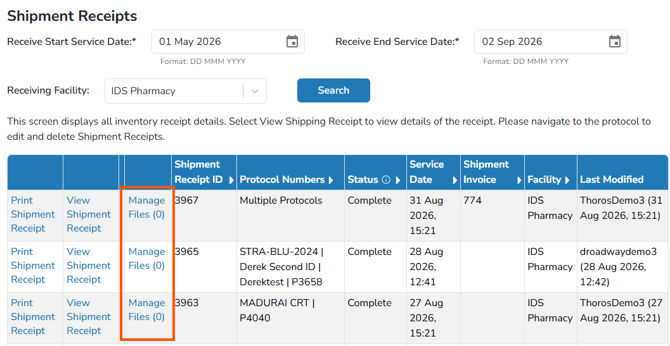
The first pathway is directly from the Receive Inventory screen. Users would locate the shipment and click on Manage Files. The user can choose to upload a file, or they can create a file.
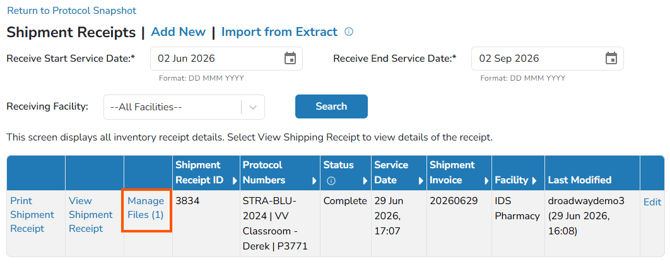
The second pathway is from the Shipment Receive Search function. In the green global navigation menu, click on Inventory Management, then Shipment Receive Search. Apply the appropriate filters and then click the blue Search button.
Patient Documents
Documents added to this section can be related to notes about the participant, subject approval, or arm enrollment information.
Documents added here are unique to that participant, on that arm, and on that study. If the participant was to roll into another arm or even be concurrently/previously enrolled on another protocol, the documents are unique to that participant arm on the protocol it was added.
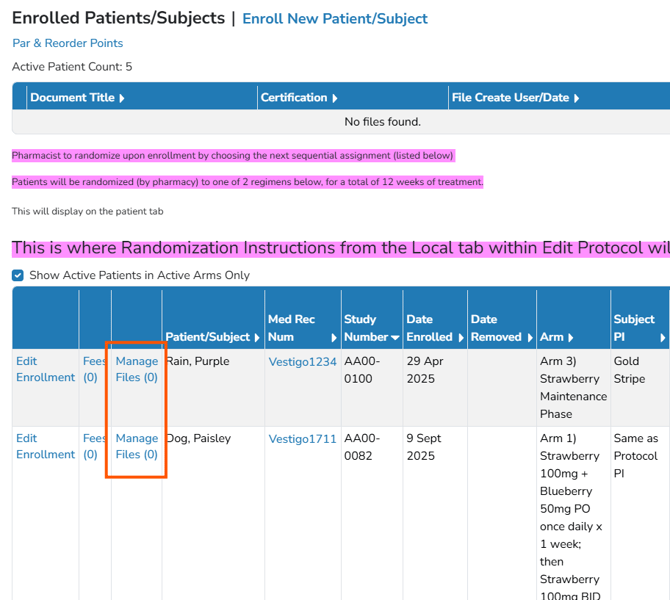
These documents are added to participant profile's when viewing the Patient/Subjects tab to a protocol.
Patient Visit Documents
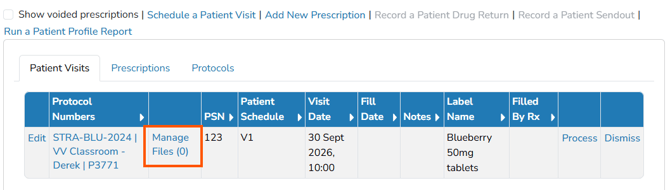
These documents are added to scheduled patient visits within Vestigo. Even after the patient visit is processed, the documents added will remain available for historical records.
To add documents to this section, there must be an existing patient visit scheduled for the participant.
Drug Returns
Vestigo enables organizations to achieve their desired level of paperless operations. By allowing users to add files to returns—whether inventory or prescription—Vestigo supports the creation of comprehensive digital records. This document management system offers straightforward navigation and efficient organization capabilities
In Manage Drug Returns, users can add files to any disposition by clicking Manage Files and using drag-and-drop to upload documents or images.
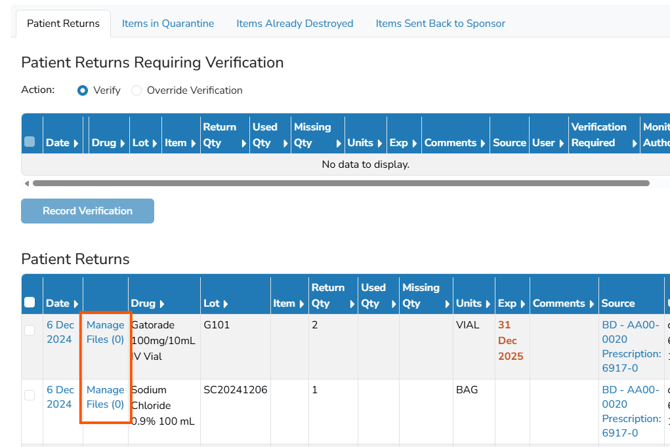
If any return is edited or a return action is processed in or to any disposition, the associated document(s) will move accordingly. However, selecting the "Delete this Return" option will result in the removal of the document as well.