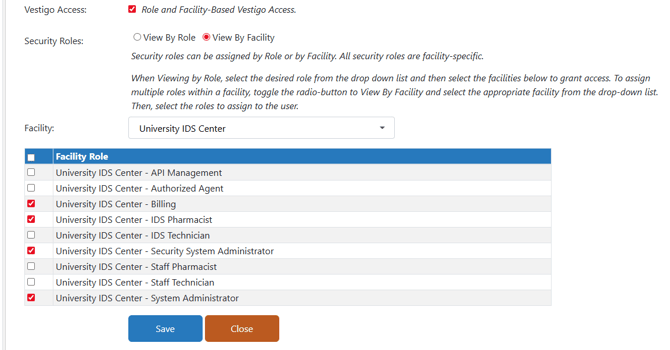
Some circumstances require System Administrators to modify existing accounts. Keep in mind that it is not appropriate to modify an account to repurpose the account for another user. User accounts are unique to an individual user and is considered that user's signature. You should only modify the account for spelling errors, name or email updates, or adding/removing roles from the account.
- Modifying an Account Email
- Modifying an Account Username
- Updating the Name on the User Account
- Adding or Removing Roles
Permissions Needed
AdminMain – Access the application administrative menu
ApplicationUsers - Ability to add and edit user accounts
Modifying an Account Email
If your site uses Single Sign On, modifying the account email can break authentication.
- Hover your mouse over Main at the top right of the screen and click on Application Administration
- Click on the Add/Edit User Accounts under User Accounts and Security
- Locate the user and Click on Edit.
- Click on Edit Email.
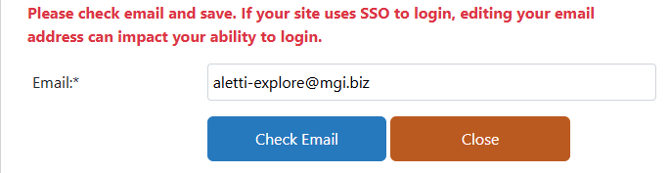
- Enter the new email and click Check Email to check if the email already exists to another contact.
- If no duplicate record was found, click Save
If you get an error during the duplicate email check, please check your address book to make sure the email was not entered under a different user. It may be appropriate to modify the duplicated contact record to different email.
Modifying an Account Username
This will retroactively update all transactions where the username appears from a recorded transaction.
- Hover your mouse over Main at the top right of the screen and click on Application Administration
- Click on the Add/Edit User Accounts under User Accounts and Security
- Locate the user and Click on Edit.
- Click on Edit UserName.
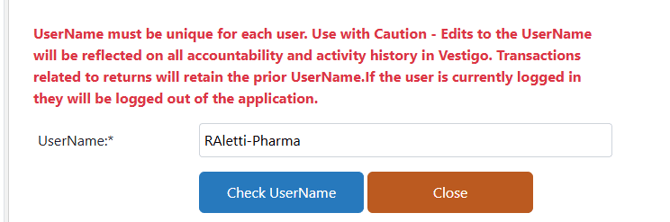
- Enter the new Username and click Check UserName to check if the Username already exists.
- If no duplicate record was found, click Save.
If you get an error during the duplicate email check, please check other user accounts to find the duplicate. You may have to check inactive users.
Updating the Name on a User Account
Updating names associated to the account will retroactively update all reports where the full name is displayed.
Every Vestigo user must be linked to a contact created by the site in the Address Book.
- Navigate to the Address Book on the Vestigo home screen
- Type in the contact's first or last name only
- Click Search
- Click Edit on the contact you wish to Edit
- Add in additional details as needed
- Click Save.
Adding or Removing Roles
- Hover your mouse over Main at the top right of the screen and click on Application Administration
- Click on the Add/Edit User Accounts under User Accounts and Security
- Locate the user and Click on Edit.
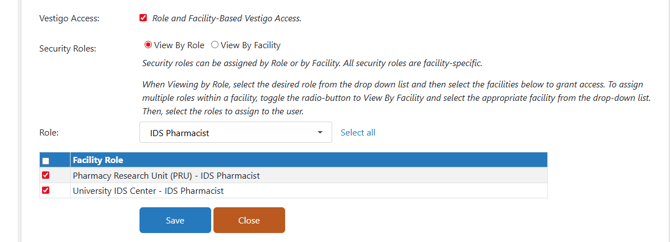
- Scroll down and under security roles, you can choose to apply by Role or Facility
- If using View by Role
- Select the appropriate Role from the drop-down menu. You can select multiple roles to apply at once.
- Click on the role(s) you want to remove or add in the appropriate facility
- Click Save
- If using View by Facility
- You will see all available facility and roles that can be added/or removed in a list. You can also apply a facility filter from the drop-down menu.
- Click on the role(s) you want to remove or add in the appropriate facility
- Click Save