
An optional but highly impactful part of the drug build is the ability to define par and reorder points for a drug build. This would apply to certain inventories that are manually ordered by the local IDS site. When these are setup, the facility will display alerts when an inventory is at or under the reorder point.
Required Permissions
EditProtocolDrugsOrders - Drug management for a protocol.
ParAndReorderPointsCalculator - Ability to access the Par and Reorder Points Calculator
Other permissions are needed to access or edit the protocol, but these are the two main permissions.
Contents
Drug Build Setup
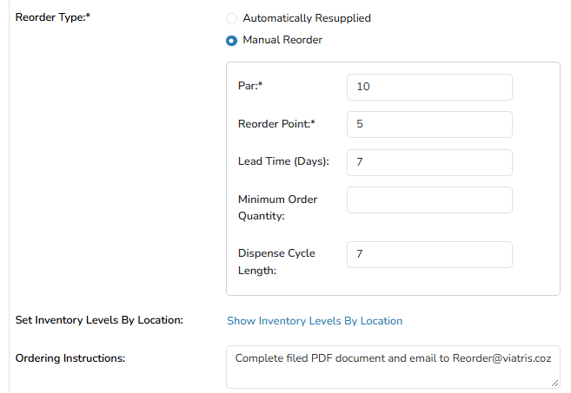
To start using the par and reorder alerts, users must first establish those points on the drug build. When editing a drug build, users will want to toggle the Reorder Type from Automatically Resupplied to Manual Reorder. Once this is set to Manual Reorder, additional options are displayed for the user to enter.
The only required fields to start are the Par and Reorder Points, but if you intend to use the calculator, the Lead Time and other fields are recommended.
The Par value entered is the amount the user wants to have the QOH after they receive the order. Once the inventory on hand reaches the reorder point, an alert will be triggered in the facility to reorder additional inventory.
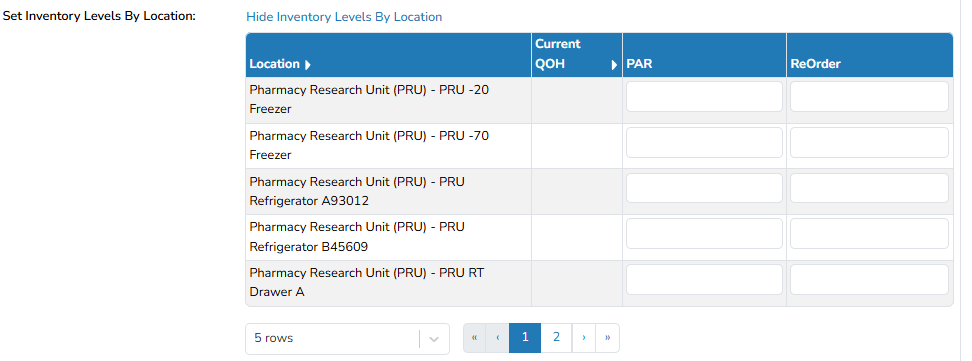
Set Inventory Levels by Location
If the protocol is available in multiple facilities or multiple inventory locations within the same facility, the site can optionally set individual Par and Reorder Points for each location. These values will take precedence over the drug build levels and will display for each location that is selected. If inventory is received into a location, but no individual location points are set, the drug build points will be used.
Ordering Instructions
The Ordering Instructions is an optional field, but highly recommended when using manual reorder drug builds. Sites can add information to this field, and it will pull to Reordering reports.
Facility Alerts
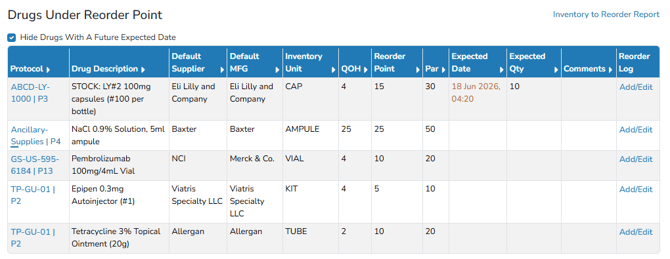
Once a user has added a Par and Reorder Point to the drug build and/or an individual inventory location, once the inventory on hand has fallen below that amount, the facility will receive an alert in the Inventory Status > There are Drugs to be reordered.
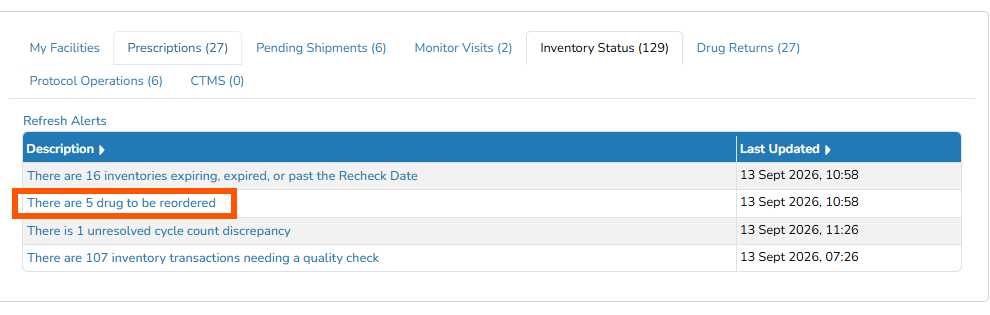
When clicked on, the user is presented with a grid of all the inventory that is below the reorder point. Users must take action to ensure they maintain an appropriate supply at the site.
Adding a Reorder Log
Once a drug has been reordered, users can add a reorder log to the inventory to temporarily clear the alert.
- Navigate to the Reorder Facility Alert
- Click on Add/Edit
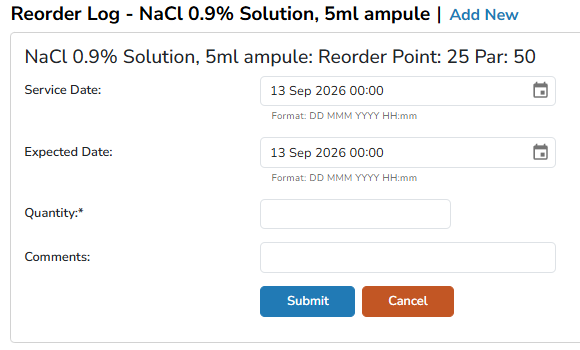
- Click on Add New
- Adjust the Expected Date to when you expect the inventory to arrive
- Enter the Quantity ordered
- (Optional) Enter any Comments
- Click Submit
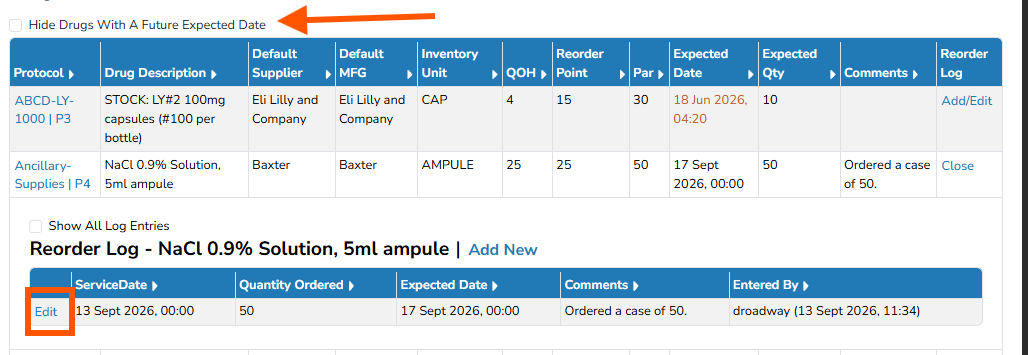
The alert for this drug build will fall out of the active alert until additional inventory is received, or the expected date has passed and the QOH is still below the reorder point.
Users can still view, edit, or delete the reorder log by unchecking the Hide Drugs With A Future Expected Date flag. This will allow users to modify existing reorder logs if needed.
Par and Reorder Calculator
After completing these fields on the drug build, a user can then use the Par and Reorder Points forecasting tool located under the Inventory tab of the protocol.

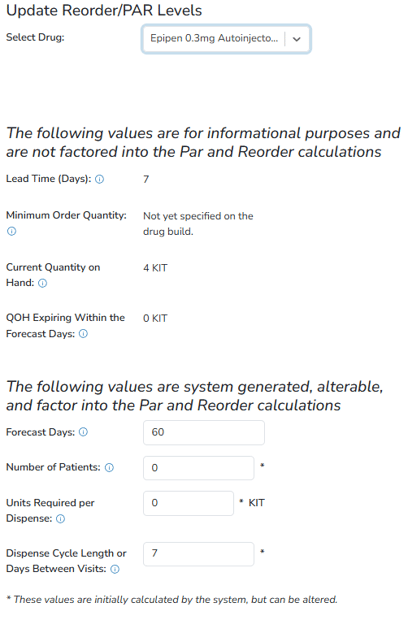
When a user clicks on the Par and Reorder Points link, they will be brought to a drop down where they must choose a drug in which to use the tool against. Once the drug is chosen, they are presented with two tables.
The first table includes Lead Time, Minimum Order Quantity, Current Quantity on Hand, and QOH Expiring within the Forecast Days fields. Lead Time and Minimum Order Quantity are pulled from the values entered on the drug build.
The second table includes Forecast Days, Number of Patients, Units Required per Dispense and Dispense Cycle Length Between Visits. Dispense Cycle Length is also pulled from the drug build.
As you work on completing each field, you will notice a question mark at the end of each field title. If you click on this, it will explain how each of the fields are calculated.
Tip - Users can click on the Info button to learn more about each field or how it is used. When clicked, a pop-up window will display all values. 
At the bottom of the page, you will see a forecast statement with some bolded fields that are adjusted as you use the Par and Reorder Point Calculator tool.

If you are satisfied with the calculation, you can choose to click the blue Save button, and the New Par Level, and New Reorder Point will adjust on your order build.