
Vestigo allows sites and users to review all associated inventory transactions related to a unique Inventory ID, even on inventory that is may no longer exist at the site. This function allows users to visually inspect the transactions in a chronological order.
This can be done on the View/Edit Inventory screen by clicking on the Txns Link to the left of each inventory. If you are attempting to review the transactions for inventory that is no longer on hand, you will have to toggle the status flag Only Show Inventory with a QOH > 0.
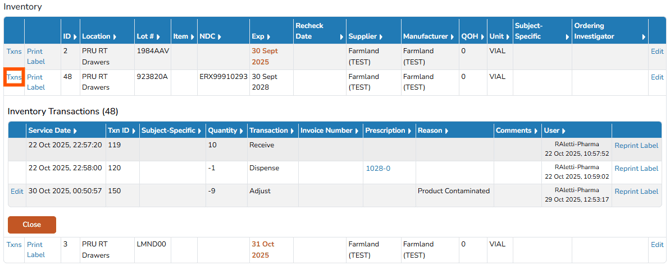
The screen will display all transactions and DARF notes related to that inventory ID. The possible transaction types that can display here are: Receive, Dispense, Cycle Counts, General Note, Transfers, Adjust, and Send Out.
When sites receive an initial inventory on a protocol, each inventory is assigned a unique Vestigo Inventory ID. On any future receipts, if inventory is received and it was an exact match to inventory historically received, it will increment it into the existing inventory ID. If the site receives non-itemized inventory, it is possible to have multiple receipts on one Inventory ID. If the site receives itemized inventory, each Item Number will receive its own Vestigo Inventory ID.
Tips - The Inventory ID is not the sponsor assigned Item Number. When sites transfer inventory to another location, participant, or ordering investigator, it will be assigned a new Inventory ID.
For rows that are labeled as Dispense, the prescription number will be a link to allow users to select and display the prescription
details. Participant prescription returns and documents can be viewed from this pop under, as well.
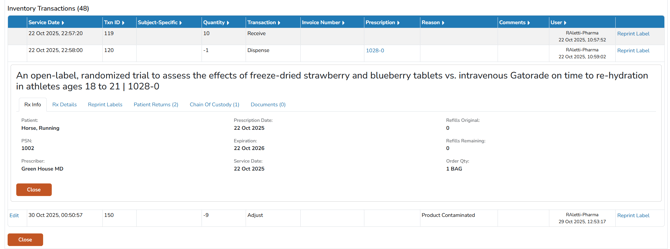
Note - If the site is contracted for any additional integrations or interfaces and if the order used them, the details can be viewed by selecting the tab within the pop under. Available additional tabs are Barcode Validation, EMR, and Chain of Custody.
Labels can also be reprinted for selected inventory transactions and edit accountability log notes from the inventory transactions grid.