
An alert on the Vestigo homepage will list the number of EHR Messages received that have not been processed. This will be filtered by the Facility that the user is logged into.
The Vestigo facilities are mapped to EHR facility or dispensing pharmacy locations by the Vestigo Support Team as part of the implementation process. This will ensure the correct EHR messages are available in the correct facility.
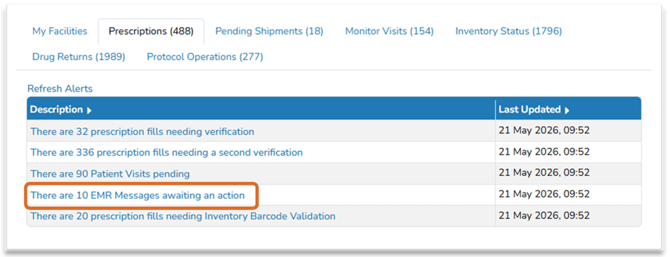
When the alert link is selected, two queues will appear on the screen:
- Orders Ready to Process
- Orders that Cannot be Processed
For reach of the sections, there are 6 columns in the EHR Order Queue:
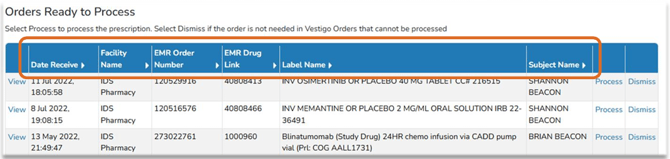
| Field | Date Received | Facility Name | Rx Identifier | Rx Order Identifier | Label Name | Subject Name |
| Purpose | Date the message was received | Facility the message was filtered into | The unique EHR Prescription # | The EHR Med ID# | The label name on the Prescription | The subject for the Prescription |
Orders Ready to Process Queue
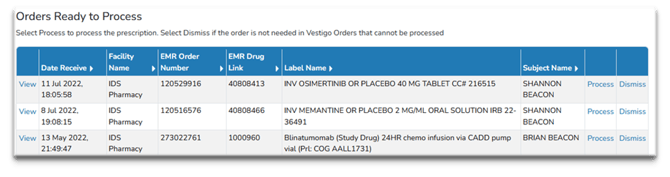
This queue represents the orders received through EHR that can be linked to at least one Protocol Order in Vestigo that is available in the logged in Facility. You can take three actions in this grid:
- Click “View” to review the order details of the message
- Click “Process” to begin processing the message into a Dispense
- Click “Dismiss” to remove the message from the queue
Dismissing a message is permanent and cannot be undone.
Orders that Cannot be Processed Queue
This queue represents the orders received through EHR that cannot be linked to at least one Protocol Order in Vestigo that is available in the Vestigo facility the user is logged into.
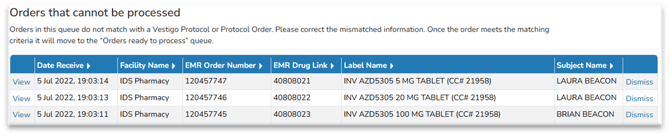
Users have two actions on this grid:
- Click “View” to review the order details of the message
- Click “Dismiss” to remove the message from the queue
Dismissing a message is permanent and cannot be undone.
To move an item from the “Cannot be Processed” grid to the “Ready to Process” grid, the EHR Med ID must be added to a Vestigo Protocol Order Build that is available in that facility the user is logged into.
This can be resolved by one of three methods depending on circumstances:
- Add the EHR Med ID link to an existing Protocol Order currently available in the facility logged in to. Please reference this article that covers Mapping Vestigo Orders.
- Add the logged in facility to an existing Vestigo Protocol with an existing Protocol Order link.
- Edit Protocol > Local tab > add the facility to “Facilities of this Protocol”.
- Add a new Vestigo protocol with an Order Build with this EHR MedID specific to the facility the user is logged into.