Inactivating a user can be done with instantly, or it can be scheduled by applying a date to the user account settings.
In the event that an internal user should no longer need access to Vestigo after a certain date, you can apply an expiration date to the user.
This article covers scheduling the inactivation and applies to both Vestigo Site Users and Protocol Specific Users. This does not apply to external monitors.
Permissions Needed
AdminMain – Access the application administrative menu
ApplicationUsers - Ability to add and edit user accounts
Scheduling a Vestigo User Account Inactivation
- Hover your mouse over Main at the top right of the screen and click on Application Administration
- Click on the Add/Edit User Accounts under User Accounts and Security
- Locate the user in the user grid you wish to inactivate
- Click on Edit
- Add a Date to the expiration field in DDMMMYYYY format
If the date is set as 31 Dec 2026, the user will no longer be able to login on December 31, 2026.
- Click Save to apply the expiration date
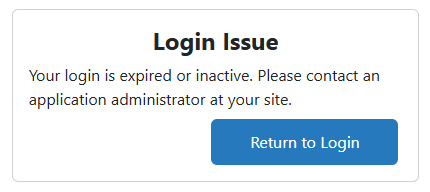
Once the date arrives, the user will no longer be able to access Vestigo and receive an error upon logging in.