
Setting monitor availability is an optional feature for each facility at a client site. Sites can define available times (recurring or one-time) for monitors to request visit access. All requests must be approved by the site’s IDS staff; approval does not automatically grant access.
There are two key requirements for this to function:
- Monitors must be manually added to the protocol prior to the monitor being able to review available times.
- Availability must be added to the calendar for the Main Facility on the protocol. If there is no availability on the calendar for the main facility, the monitor will not be able to request a time.
How to set up availability
Ensure you are logged into the correct facility and navigate to the Calendar. Then select the link Set Availability for Monitor Visits. On the pop out window, enter the date that the availability starts on.
Eg: If the availability is for every Monday, select the upcoming Monday date for when you want to start using this functionality.
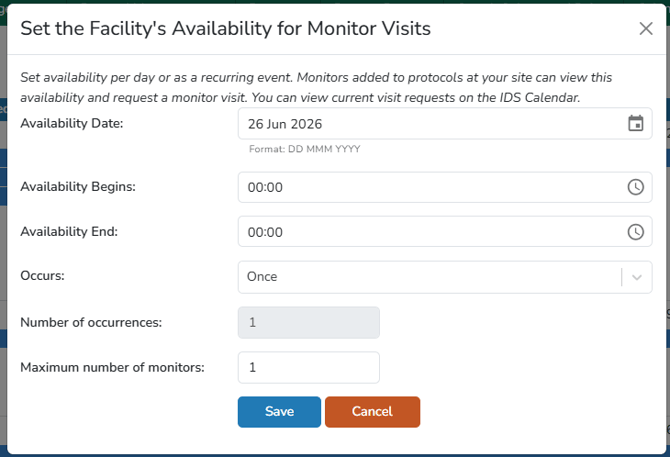
Enter the start and end time for the full span of availability. The time should be entered using a 24hr clock (military time) and uses the facility time zone.
There are 5 options for how this availability should occur.
- Once: this availability will only be available one time, the date entered.
- Weekly: this availability every week on the day that corresponds to the date.
- Every other week on this day: corresponds to the day of the date entered.
- Monthly on this date: it will only occur on the day portion of the date, each month.
- Finally, monthly on this day, this week: this availability will be set to the day corresponding to the date of that week per month.
- For example, October 13, 2020 – this is a Tuesday, the 2nd Tuesday of the month. Availability date 10/13/2020 that is set to monthly on this day, this week will recur on every 2nd Tuesday of the month. If I set the number of occurrences to 2, the availability will occur on November 10 and December 8.
For Number of occurrences, enter the quantity of Monday’s that you want to provide this availability. For example, if this availability is for the remainder of 2020, there are 11 Monday’s remaining.
For recurring events, the maximum number of occurrences is 6 months. This means, if “Weekly” is used, the maximum number of occurrences is 24 (weeks).
Maximum number of monitors will limit the number of monitors asking for this availability per occurrence. If it is set to 2, only 2 monitors will be able to request a visit per availability.
Note: One monitor using “Request a Visit” for two separate studies count as 2 monitors. The link will no longer appear for any monitor when the maximum number of monitors per that availability has been achieved.
Once the availability is set, if additional availability needs to be added, follow the same steps for the next availability entry.
While sites may limit the amount of available time slots for monitors to request, IDS users can still manually add visits to protocols as needed.
Tips from McCreadie Group
If your site utilizes both, remote and onsite visits, you can still set this up with the calendar. Some points to consider is how many days a week you want to support the visits both remotely and on site.
What we have seen from organizations that have successfully implemented this into their workflow is they will have 2-4 availability slots for onsite visits per week and usually limited to 2 days a week. While remote visits may have 3-5 availability slots per week for and available most of the weekdays.
When setting the onsite available times, set the time accurately and ensure they align with when your pharmacy can support an onsite visit.
When setting time slots for remote visits, we recommend setting the times to 00:00. When approving the visits, you would leave the visit date alone but adjusting the access date start and end to support the remote visit.