
At McCreadie Group, we are committed to keeping all of your data— including PII (Personally Identifiable Information) and other sensitive information—secure, while ensuring our systems and procedures are up to date and in compliance with all related regulations. As the key provider of Investigation Drug Service software, protecting our client’s data is of the utmost importance, and we have the policies and standard operating procedures in place to ensure that this commitment is never broken.
Organizations may choose to allow Vestigo users to authenticate with organization credentials, referred to as Single Sign On, or SSO. This provides the best account security that Vestigo offers.
- Navigate to their site-specific URL
- If you do not know your site specific URL, please contact a local site system administrator. If you are trying to authenticate from a search result on a internet search engine, authentication will not succeed.
- User will enter their email address only and click Next
- You will automatically be redirected to your institution’s IDP for authentication.
- If there are any requirements your organization has put into place to reauthenticate, you will enter your organization’s network credential or use organization MFA such as authorizing the login via mobile app. This screen should indicate you are authenticating with your organization.
- Once authenticated with your institution’s IDP, you will be placed on the Vestigo home screen or facility selection screen.
First Login with SSO
If this is your first time authenticating with SSO, the user will have to complete two steps prior to accessing Vestigo.
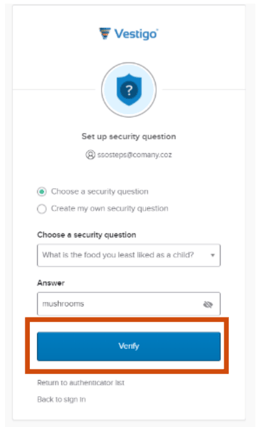
First the user must establish a security question. Users can choose from a list of pre-determined questions and provide an answer. Alternatively, the user can create their own security question and answer.
Once completed, they will click Verify.
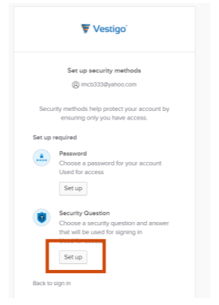
In certain scenarios, the user may be required to create a password. You will click on Set up under Password and create a password. We recommend creating a password that is at least 8 character with 1 upper case, 1 lower case, 1 number, and 1 symbol. Once you have a password entered, you will click Next.
Note - This password is not used for authentication into Vestigo. This password is only needed in the event that SSO authentication is unavailable and site security IT has approved the use of password authentication. In this event, please contact support at support@mccreadiegroup.com
Tips for Vestigo SSO
Current users who have a user account in Vestigo now
The user will navigate to the Vestigo client site URL. The user will be prompted to complete the “activate” process using the steps on the first pages of this document. They will create a security question/answer and then be logged in.
New users added to Vestigo after the SSO SAML Cutover
All new users will receive an email notification to “Activate Vestigo Account”. They will create a security question/answer and a new password. They will then be logged in. Going forward, the password will not be used during authentication.
The user must complete the “Activate Vestigo Account” before going to the Vestigo client site.
If the user goes to the Vestigo client site before activating their Vestigo account, the email “Activate Vestigo Account” email will not work. Please have the user contact support@mccreadiegroup.com for assistance.
Reactivated Users Who Have Not Activated their User Account
These users must email support after their user account has been reactivated in Vestigo. We will send them a new “Activate Vestigo Account” email.
Password Resets
The password reset function at your site’s authentication screen will not work as your organization is using institution credentials for authentication. If you are unable to login to Vestigo, please contact a local Vestigo Site System Administrator prior to contacting Vestigo Support.
Bookmarks
We recommend not bookmarking the login page for your Vestigo URL as it can cause authentication issues. Once you authenticate into Vestigo and you are at the Protocol Search screen, you may bookmark this screen. Alternatively, you may create a bookmark and have the URL be similar to https://example.vestigo.biz. If your bookmark starts with login.vestigo.biz, this may cause authentication issues.
For any issues, the user can email us at support@mccreadiegroup.com.