
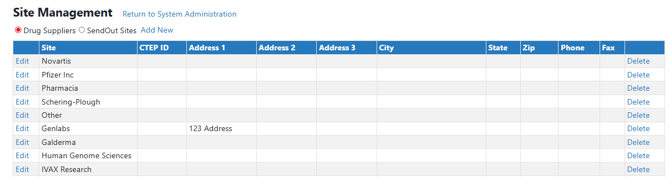
The Site Master is used to manage suppliers and send out sites across the client. In Vestigo Suppliers can be dually used as Inventory suppliers or Manufacturers. When users access this module, they can add, edit, or delete supplier.
Adding a supplier/manufacturer can be done two ways. One from the drug build itself, or from App Admin. This article covers adding a supplier from App Admin.
Permissions Needed
AdminMain – Access the application administrative menu
SiteManager – Ability to manage sites for drug suppliers and sendout sites.
Adding a Supplier/Manufacturer
- Hover your mouse over Main at the top right of the screen and click on Application Administration
- Click on Site Master under Client and Facility
- Ensure the Drug Supplier radio button is checked
- Click Add New
- Enter the name of the Supplier or Manufacturer as the Site Name
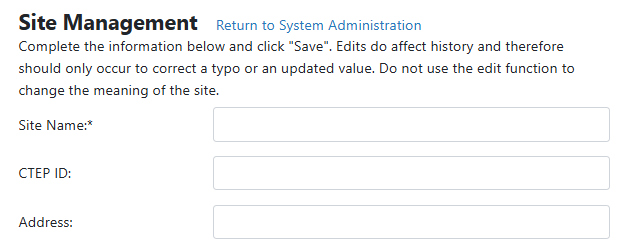
- Optionally, you can add additional information as needed
- Click Save
Modifying a Supplier/Manufacture
Editing a supplier impacts historical records and should only be used to correct a typo. Users should not change the meaning of the site.
- Hover your mouse over Main at the top right of the screen and click on Application Administration
- Click on Site Master under Client and Facility
- Ensure the Drug Supplier radio button is checked
- Click Edit on the supplier you want to edit
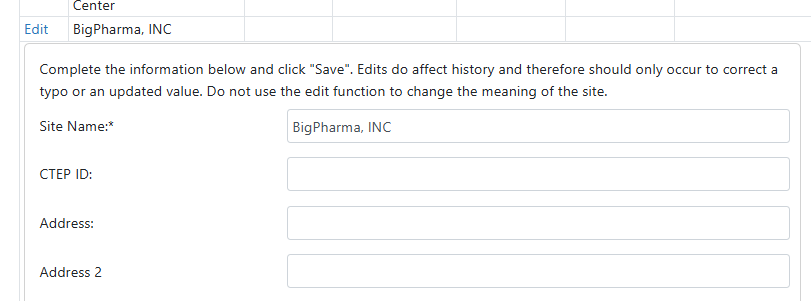
- Make the appropriate modifications as needed
- Click Save
Inactivating a Supplier/Manufacture
Deleting a supplier will not impact historical records but will prevent that supplier from showing up as a selection for future inventory.
While the verbiage of this guide says delete, users are inactivating the supplier and preventing future use. You will be unable to reactivate the supplier.
- Hover your mouse over Main at the top right of the screen and click on Application Administration
- Click on Site Master under Client and Facility
- Ensure the Drug Supplier radio button is checked
- Click Delete
- Click OK to confirm the deletion