
Changing arms may be necessary when participants move from one arm to another and sites are managing them separately. This may be done because certain orders are only available in certain arms, or maybe the arms are setup as Blinded and Open Label Extension. Managing participants in a protocol is done on the Patients/Subjects tab of the Protocol Snapshot. On this tab, you will see a list of participants currently enrolled in the protocol and links to modify certain parts of the participant’s enrollment.
Required Permissions
ViewPatientSubjects - View patient/subjects in a protocol. Protocol Snapshot permissions are required
EnrollPatients - Ability to enroll patients into a protocol
EditPatientEnrollment - Allows the user to edit the patient study number and the date of enrollment for a given patient/subject enrolled in a protocol
-
Navigate to the Protocol
-
Click on the Patient/Subjects Tab
-
Click on the Edit Enrollment link for the appropriate participant
- Scroll down and locate the Enrollment Arm drop down menu and select a new Enrollment Arm
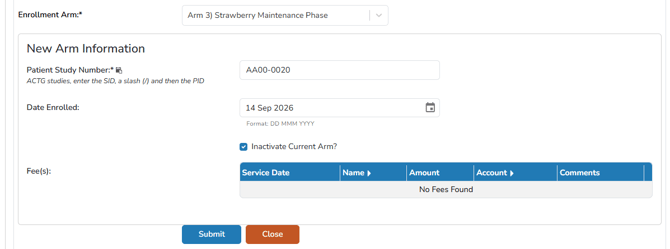
- The screen will expand and show additional options
- Users can change the Patient Study Number (PSN) for the new arm or leave as is. In most cases, this will remain the same.
- (Optional) Adjust the Date Enrolled
- (Optional) If the participant is to only be enrolled in the new arm, leave the Inactivate Current Arm? checked. If the participant is to remain enrolled in the original arm, uncheck this flag
- Click the blue Submit button
Caution - If a PSN is entered that already exists on the protocol, the user will see a validator message indicating the entered Patient Study Number is already in use on the selected arm. You may click Save again to override this warning. Users are recommended to doublecheck the PSN and make any corrections before override the save.