
Required Permissions
InventoryAdjustment - Ability to do an inventory adjustment
ViewInventory - View inventory in a protocol
Introduction
Vestigo has a system to provide an adjustment reason to use for situations where a patient/subject is not to be enrolled in the protocol but permitted use of the study drug. Once the adjust is saved using this pathway, the adjust/dispense cannot be reversed/voided. Users can edit certain details about the dispense by locating the transaction in View/Edit Inventory and click Edit on the adjust transaction.
If a dispense is recorded through this pathway, the user is not permitted to record returns associated with this dispense. If a return record is required, the site should consider building an order and going through the standard dispensation process.
Using Adjust to Record a Dispensation
- Navigate to the protocol.
- Click on the Inventory Tab.
- Click on Adjust Inventory.
- Select the Drug from the drop down menu.
Additionally, you can also add a filter by lot number here as well.
- Select either Single Adjust
Caution - It is not recommded to use Bulk Decrease Inventory to record a dispensation with this pathway
- Select the Inventory from the dropdown menu
- Select the option for Decrease
- Enter the Quantity
- If needed, adjust the Service Date
- Select the Adjustment Reason of Record a Dispensing
- Additional fields will become visible, and some are required
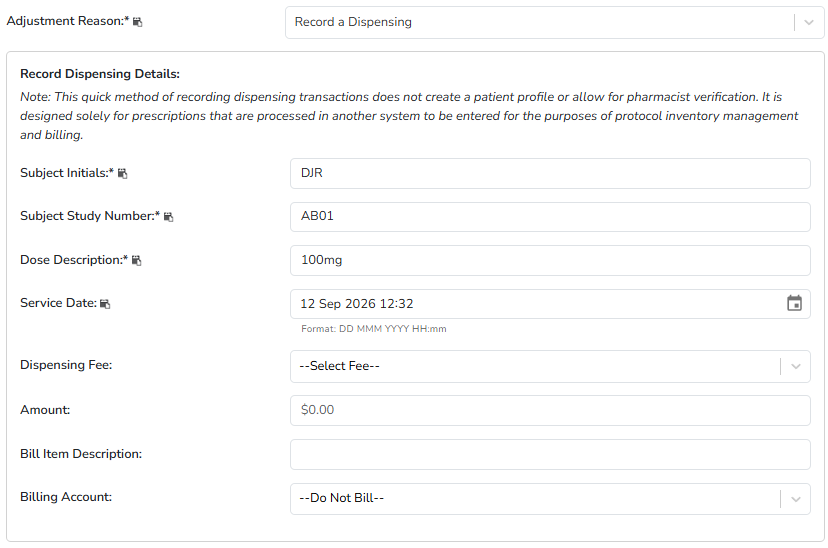
- Enter in the following required fields: Subject Initials, Subject Study Number, and Dose Description
- Adjust the dispense Service Date to match the above adjust Service Date
- (Optional) Select a fee from the drop down and make any appropriate adjustments to the amount, description, or account.
- (Optional) It is recommended to add accountability log comments about the dispense.
- If needed, adjust the number of Labels and Printer.
- Click the blue Submit button.