Requirements
Sites must have at least one override reason created. Site inventory labels must also include the QR code for Barcode Validation. Labels must be available on the inventory
Permissions
BarcodeValidation - Ability to scan barcodes to validate items being dispensed.
Validating or Overriding Dispenses
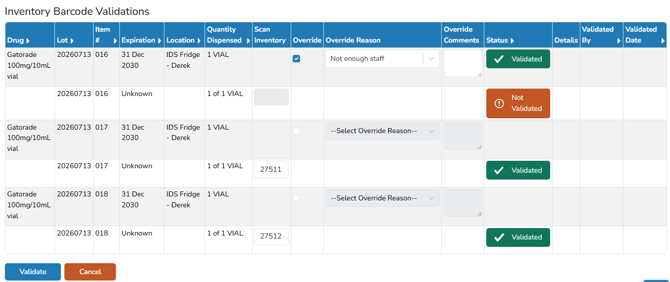
If the order is set to navigate directly after order entry/verification, the user will land on the Inventory Barcode Validations right after the transaction. Each drug item that is a Full Build Tracking drug will be listed to validate.
Note - It is possible to have mixed validations on each dispense. If the order contains 3 items, but only 2 can be validated by scanning, and the third is not scannable, the user can reprint the label, or they can click Override and apply the appropriate reason.
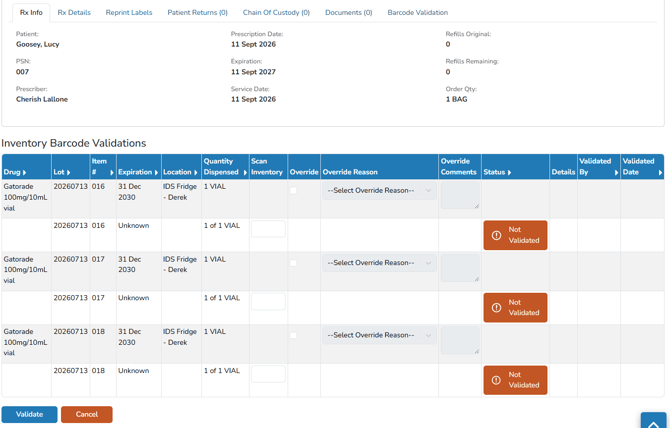
Optionally, users can back out of this screen and perform it later.
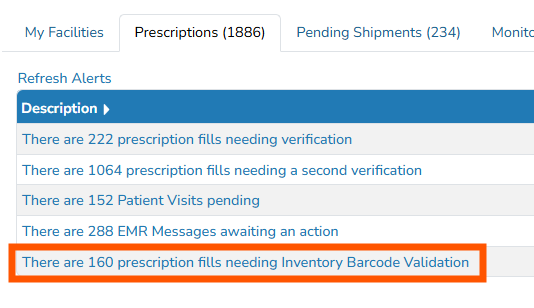
If the order is set to not navigate directly on dispense, users can access the validation screen again from the facility alert. Then clicking on the Validate link.

Validating Dispenses
On the validation screen, the validating user will be able to review the information related to the dispense, along with the validation status of the inventory.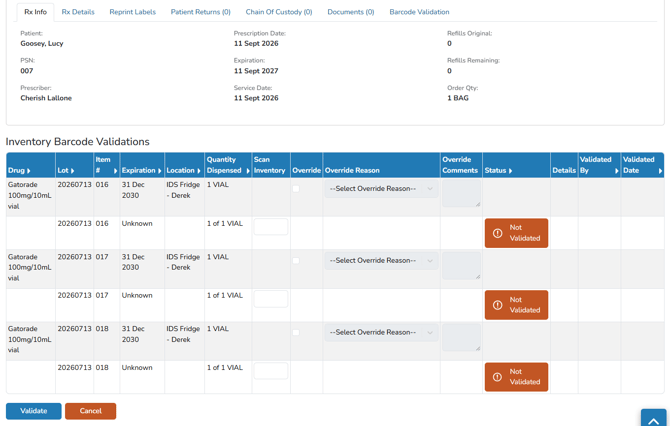
- Users will want to ensure their cursor is in the first scan inventory field prior to scanning.
- If inventory is scanned and it is incorrect, the application will display an incorrect field. Users will need to determine how to correct the scan.
- Once an inventory is scanned and it is correct, the Not Validated will change to a Validated, and the curse will automatically move to the next field.

Note - In some situations Inventory may have been received in one location and then transferred to another location prior to dispensing, and it still has the original label on it. Vestigo will be able to identify this and will still allow the scan.
- Continue scanning inventory until it is all Validated
- After the last inventory is Validated, click the blue Validate button to complete the validation.
Overriding Dispenses
If a inventory needs to be overridden, users can click on the Override check flag to bypass scanning. However, this will require the user to select a reason from the drop-down menu. It is recommended that users who override a barcode validation enter a reason. Overrides are visible on reports
Tip - When overriding a dispense, please ensure you are following local organization policies.