
When a non-verifying user dispenses a prescription or a refill, it works the same as when a verifying user does the dispensing, except the prescription will be recorded as being unverified. Upon saving, the prescription will show the prescription as unverified however, the inventory used on the prescription is already deducted from inventory.

Verification Statement
At the bottom of the dispense screen, users will see this verification statement that meets the requirements 21CFR11, section 11.5.3. It is an attestation that the electronic signature means the user has verified and approved the prescription, by clicking SAVE at the end of the dispense transaction.

E-signature with PIN or Biometric Key
Vestigo provides the means to enhance sites compliance with 21CFR11 (11.2 and 11.5) with E-Signature verification. This also supports State Boards of Pharmacy that require re-authentication of the user when dispensing. While the option to use E-Signature is up to the site, McCreadie Group strongly recommends that sites enable this feature.
When enabled, it requires verifying users to re-authenticate their credentials with a PIN or Biometric Key (fingerprint) when verifying dispenses.
A user can establish their PIN when E-signing the first dispense using this process, however, any edits or resets to their PIN will be need to be completed in the My Account section. Resets and edits should be done before proceeding to verify a dispense as the user will not be able to verify if they do not know their PIN.
When a user who has a role with the “verify” permission edits or saves a prescription, they will be prompted to enter their PIN or Biometric Key. The PIN or fingerprint constitutes that user is indicating they have approved the dispense.
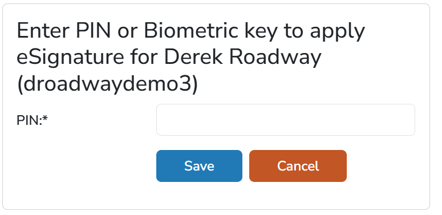
If the user enters an incorrect PIN, an alert indicating such will display. In the same way, if the user selects “Submit” without entering the PIN, an alert indicating such will display.
Verifying a Prescription
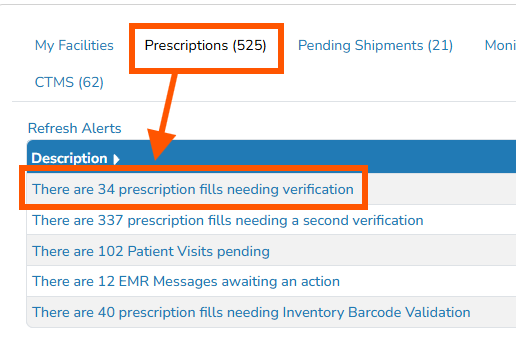
Users with permission to verify will see a Verify link dispenses that have not been verified on the participant profile. In addition, when verifying users log in, there will be an alert on the home screen with a count of Unverified Orders. To view the list of unverified orders, click on the alert link.
Here you can navigate to complete the verification:
-
Selecting the RxNumber link > brings you to the prescription for verification
-
Selecting the MedRecNum link > brings you to the patient/subject profile for verification

At the Prescription Details page, verifying users should confirm all information is accurate and then click Verify.
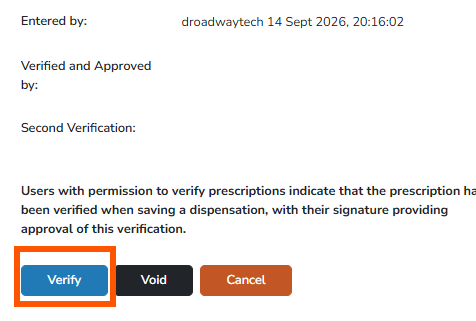
If your site utilizes E-Signature for verification, you will be prompted for your e-signature pin or biometric key.
Second Verification
Users with permission to verify will see a Verify link dispenses that have been verified on the participant profile but need a second verification record. In addition, when verifying users log in, there will be an alert on the home screen with a count of Unverified Orders. To view the list of unverified orders, click on the alert link.
Note - Second Verifications are established at the order build level and need to be turned on prior to recording the dispense. When enabling the second verification, historical prescriptions are maintained and will not require second verification.
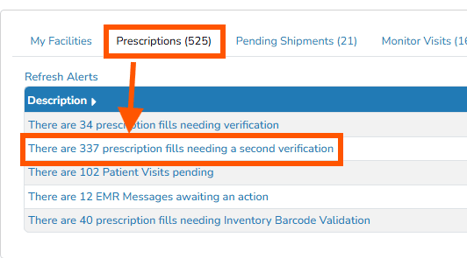
From the facility alerts, click on the alert for Prescriptions needing a Second Verify.
Here you can navigate to complete the verification:
-
Selecting the RxNumber link > brings you to the prescription for verification
-
Selecting the MedRecNum link > brings you to the patient/subject profile for verification

At the Prescription Details page, 2nd verifying users should confirm all information is accurate and then click Second Verify.
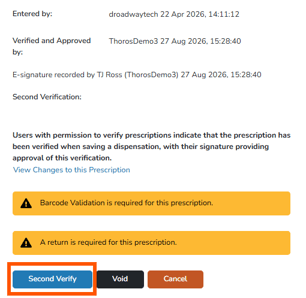
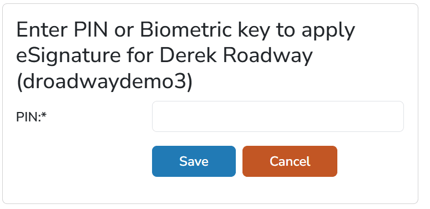
If your site utilizes E-Signature for verification, you will be prompted for your e-signature pin or biometric key.