
Vestigo allows users to create templates that can be inserted into various fields within Vestigo for certain transactions. By doing this, it creates consistency by using the same text every time, but also drives efficiency by being able to use the same text over and over again without typing it each time.
Vestigo Templates are site wide and can be used by any user in any facility.
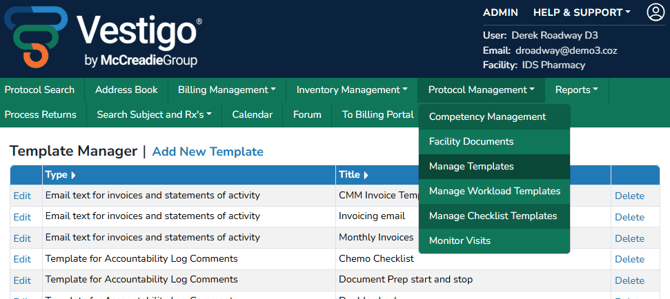
Required Permissions
TemplateManager - Ability to manage templates under Protocol Management
Types of Transactions that Allow Templates
The below types are standard with Vestigo and cannot be adjusted or modified by sites. The type drives where the templates can and can't be used.
- Email text for invoices and statements of activity
- Randomization Instructions
- Template for Accountability Log Comments
- Template for Attestation of Competency
- Template for Competency Send Reminders
- Template for Destruction Comments
- Template for Directions or Special Instructions
- Template for Logistic Notes to Send to Monitors
- Template for Notes to Send to Monitors
- Template for Patient Send Outs
- Template for Patient Visit Notes
- Template for Protocol Budget Header
- Template for Protocol Budget Footer
- Template for Protocol Notes
- Template for Responses to Monitor Site Requests
- Template for Return Log Comments
- Template for Return to Sponsor Comments
- Template for Send Outs
Using a Template
Using a template is easy with Vestigo. During certain transactions, such as but not limited to dispenses or inventory returns, Vestigo allows the use to select a template from a drop down menu.
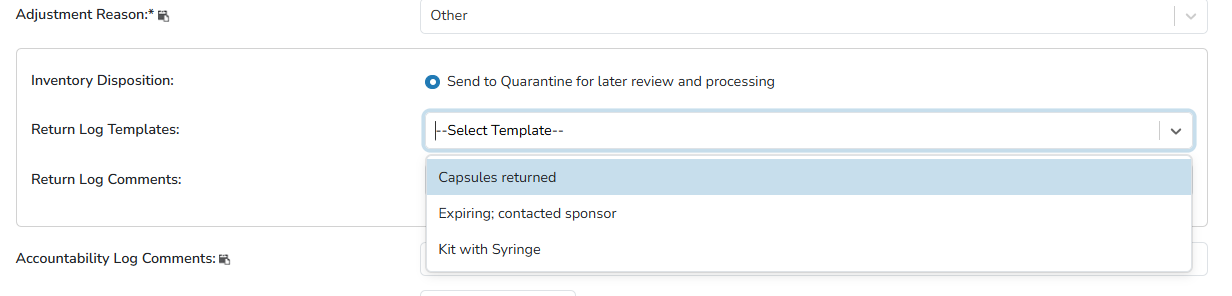
When you select the template, Vestigo will automatically populate the associated field with the template text. It can then be modified as needed by the user recording the transaction.

Combining Templates
Users can also combine templates when using them. Users will select the first template they want to appear from the drop down menu. The associated field will populate with the template text. Then, the user can select another template from the drop down menu. The second template text will be entered at the end of the text that was previously entered. This allows the user to concatenate several templates together if needed.