
Required Permissions
ProtocolSnapshot - Ability to view the Summary page of a Protocol (Protocol Snapshot). Required for all other protocol view permissions.
Inventory - Allows a user to view the View/Edit screen on the Inventory tab on a protocol.
InventoryEdit - Allows a user to use “Edit” on “View/Edit Inventory” on a protocol.
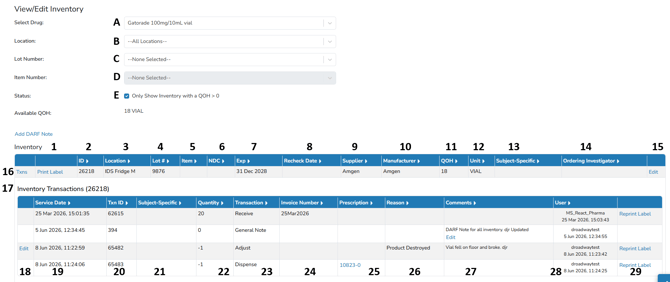
Below is a screenshot of the View/Edit Inventory screen with an inventory transaction log expanded.
Definitions
-
Drug Description (A) - This drop down menu displays all available drug builds on the protocol and is the only required selection to display inventory.
- Filters (Optional) - Allows users to get granular results for inventory select in (A)
- Inventory Location (B) - The location drop down allows you to only display any inventory that is or has been stored in a location.
- Lot Number (C) - The lot number allows users to only display inventory that matches the lot number selected.
- Item Number (D) - The Item Number is unavailable for selection unless a user selects a Lot Number.
- Inventory On Hand Status Flag (E) - By default, the status flag is checked to only show inventory that has inventory on hand. If you looking for inventory that you have already dispensed or quarantined, you will want to uncheck this flag to show all inventory based on the above filters.
- The Print Label function allows users to print an inventory label for the line item.
- Inventory ID - This is a unique ID that each inventory is assigned and helps keep like inventory together on one inventory line item. The Inventory ID is also used for sites that utilize Barcode Validation. Vestigo Support may ask you for this ID If you have an inventory question.
- The Location shown is where the inventory is/was located.
- The Lot Number associated with the line Item.
- If present, the Item Number will show here.
- If present, the NDC will show here.
- The Expiration or BUD of the line item. If the inventory has an unknown expiration, it will display as Unknown
- The inventory Recheck Date, if one was applied.
- The Supplier of the inventory line item.
- The Manufacturer of the inventory line item.
- The current Quantity on Hand (QOH) of the inventory line item.
- The Unit of Measure set in the drug build. This is how your inventory is received and dispensed.
- If the inventory is Subject Specific, a PSN will be present here. If the value it blank, it can be used for anyone.
- If your protocol is set to Track by Ordering Investigator, the Ordering Investigator column will appear and designate the ordering investigator that it was ordered under.
- The Edit hyperlink that users can click to edit the inventory line item.
- The Txns hyperlink that users can click to see all inventory transactions associated with the Inventory ID.
- The Inventory Transactions expand underneath the Inventory ID.
- The Edit link allows users to adjust certain values on the transaction. Only certain transactions allow users to Edit.
- The Service Date associated with the transaction and designates where the transaction will appear on the DARF. This date may be different than what is listed in the User column.
- The Transaction ID. Not typically used in IDS Activities, but Vestigo Support may ask you for this number if you have a question.
- If inventory is Subject Specific, it will display the Subjects PSN in this column. Otherwise, it will be blank.
- The Quantity column will display the transaction amount in a positive or negative number. If the transaction was a DARF Note, the value will display as 0
- The type of Transaction that the transaction is. The possible transaction types are: Receive, Dispense, Cycle Counts, General Note, Transfers, Adjust, and Send Out.
- The Invoice Number will display if the transaction is a Receive and it was entered during receipt.
- The Prescription will display if the transaction is a Dispense through Add New Prescription pathway. A prescription number will not display if users used Adjust inventory to record a dispense.
- The Reason will display if the transaction is an Adjust.
- The Comments are what is entered into the accountability log comments during that transaction.
- The User column shows the user who recorded the transaction along with the date and time. This time may be different than the date and time in the Service Date column.
- The Reprint Label column allows users to reprint that unique Pick/Stock label for that transaction.