
There are several areas within the application to review any recorded data associated with Chain of Custody. Reports are available on each dispense, each protocol, and on the Reports tab across multiple protocols.
Data on the Participant Profile Dispense Page
- Navigate to the Participant's profile through the Patients/Subjects tab on a protocol or Participant Search
- Locate the Rx and click on the Rx Number
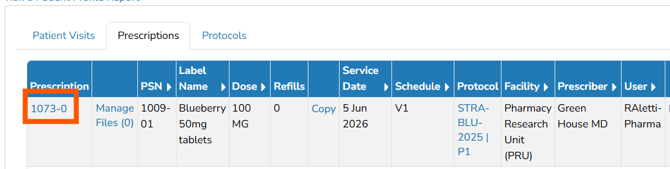
- Click on the Chain of Custody tab
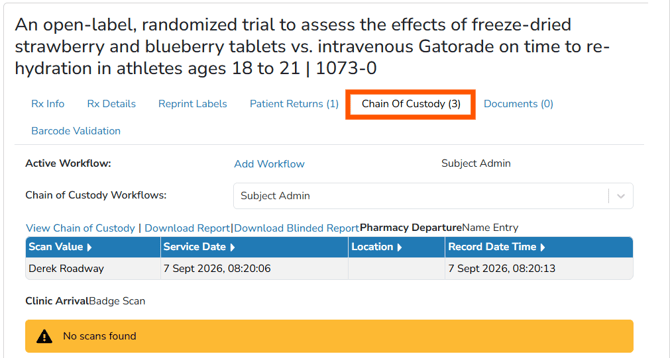
On this tab, users can review scan data associated with the workflow in the app, or they can download the CoC reports. If multiple workflows were used on this dispense, users can change the workflow from the dropdown menu to select the previous workflows.
Users can choose to download the blinded or unblinded report for the selected Chain of Custody workflows. The unblinded and blinded report are the same report, except the blinded report displays limited participant or Rx data. The blinded report can be downloaded by protocol specific users that have access to the protocol and any monitor with an active visit on the protocol.
Warning - The unblinded report may contain unblinding data and caution should be exercised when downloading or sharing this report.
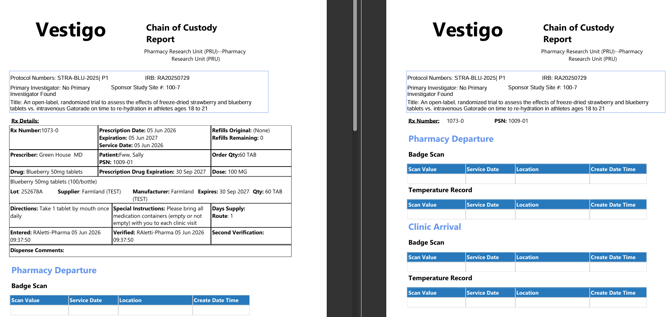
Additionally, if users click on View Chain of Custody link, they are taken to the URL that would be embedded in the label QR code. This page is unique to that dispense.
Caution - This link can be shared via local communication methods, but please follow local policies regarding sharing of the URL.
Reports on the Protocol
On the Reports tab of the protocol, there are two report. The Chain of Custody Records and Chain of Custody Steps Summary.
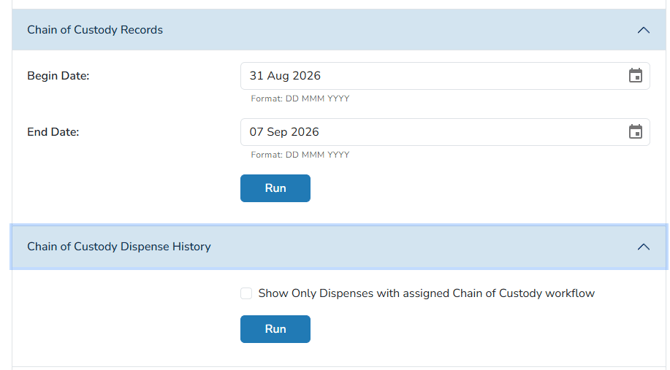
Chain of Custody Records Report will download in an excel document and display all steps completed for each dispense. This report will not display any steps that have not been completed. Sites can apply filters to this report to help with any data retrieval.
The Chain of Custody Dispense History Report will download as an excel document and show all dispenses and associated workflow steps, along with if they are completed. One row will display for each dispense and each workflow. If multiple workflows were assigned, each workflow will have its own row. This report comes with an optional flag to download a report with only dispenses that have a workflow assigned

Reports at the Global Level
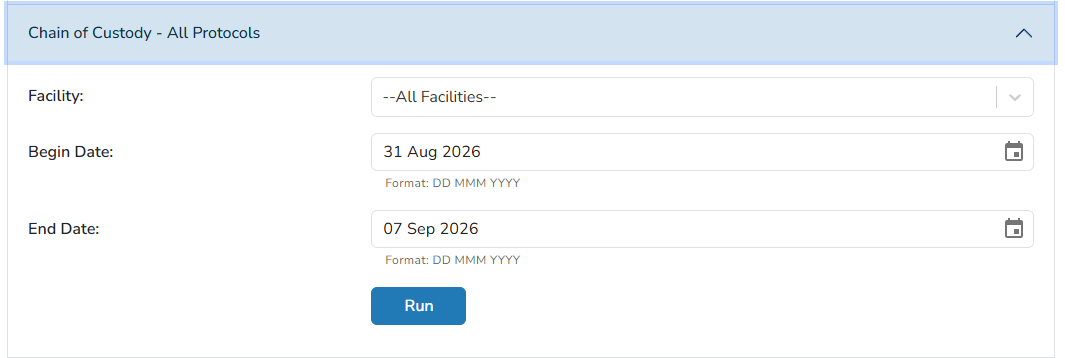
Users can run a global report for Chain of Custody. This report does not contain any PII but it does include Rx number and PSNs. This report displays all completed workflow steps across all protocols in a filterable spreadsheet.
- On the green global navigation menu, click on Reports > Protocol Reports
- Locate the Chain of Custody - All Protocols and click to expand it
- Modify the filters as needed
- Click Run
This is the same report that is available at the protocol level, but across all protocols at the site that the user has access too. Chain of Custody Records Report will download in an excel document and display all steps completed for each dispense. This report will not display any steps that have not been completed.