
Workload Templates allow sites to define standardized workload values that can be reused across protocols, improving efficiency and consistency when setting up new studies.
Once created, a workload template can be easily imported into any protocol within the site, simplifying the process of adding and managing workload data.
Sections
Required Permissions
WorkloadTemplates - Manage Workload Templates
Other permissions may be required to access application administration.
Prerequisites
Workload SubCategories - Prior to creating a workload template, the site must establish workload subcategories. If those need to be created or modified, please visit this page
Creating a Workload Template
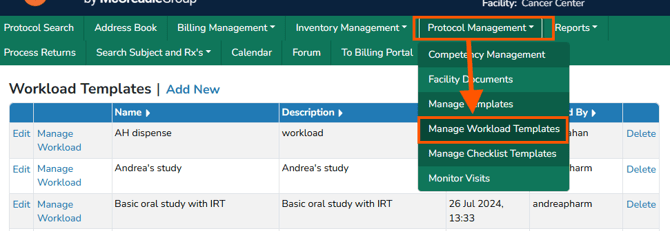
- On the Vestigo home screen, click on Protocol Management > Manage Workload Templates
- Click the Add New link
- Enter Name/Title for the template
- Enter Description
- Click the blue Submit button
Adding Workload to Templates
- At the Manage Workload Templates screen, click on Manage Workload for the template you want to add workload to
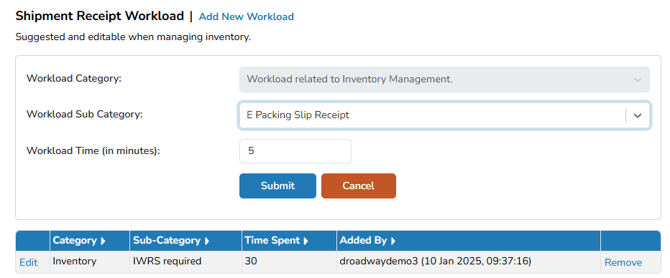
- Locate the Category you wish to add a Subcategory to and click on Add New Workload
- From the Workload SubCategory dropdown select the SubCategory you want to add
- (Optional) Modify the Workload Time, if needed. Modifications only apply to this template and not the subcategory.
- Click the blue Submit button
- Repeat if necessary to add additional workload to the same or different categories
Editing a Workload on a Template
Users can adjust the default time value for each subcategory within a template or update the subcategory itself. Changes to workload settings are not retroactive and will only apply to protocols where the workload template is added after the modifications are made.
- At the Manage Workload Templates screen, click on Manage Workload for the template you want to manage workload for
- Locate the workload and click on the Edit link
- Make the appropriate updates as needed
- Click the blue Submit Button
Deleting a Workload on a Template
Users can remove a workload from a template when it is no longer applicable. Changes to workload settings are not retroactive and will only apply to protocols where the updated template is added after the modification.
- At the Manage Workload Templates screen, click on Manage Workload for the template you want to manage workload for
- Locate the workload and click on the Remove link
- Users will need to click the blue Confirm button prior to the workload removal from the template
Deleting a Workload Template
Deleting a workload template does not remove its associated subcategories, but it does prevent the template from being imported into future protocols. This action does not affect any historical protocols where the template was previously used.
Deleting workload templates is permanent and cannot be reversed.
- On the Vestigo home screen, click on Protocol Management > Manage Workload Templates
- Locate the workload template you wish to delete and click on the Delete link
- Users will need to click the blue Confirm button prior to the template being deleted