
The edit screen functions identically to the add prescription screen. You may update both the inventory used and the prescription details as necessary. To apply any corrections, make the required changes and select the Save button to finalize your edits. All modifications will be recorded in the audit log at the protocol and prescription level, and new labels will be generated automatically. The dispensing fees will not be charged again, however, if the service date was modified for the prescription, the service date on the charge will also be updated.
Note - Prescriptions cannot be modified after the protocol has been closed.
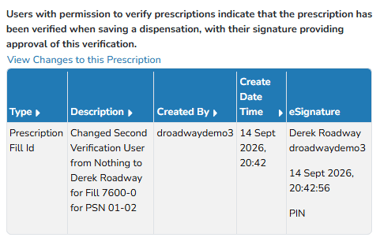
A prescription audit link is available if there have been any edits to the prescription. When changes are made to the prescription, select the “View Changes to the Prescription”. A pop-up box will display the changes to the prescription.
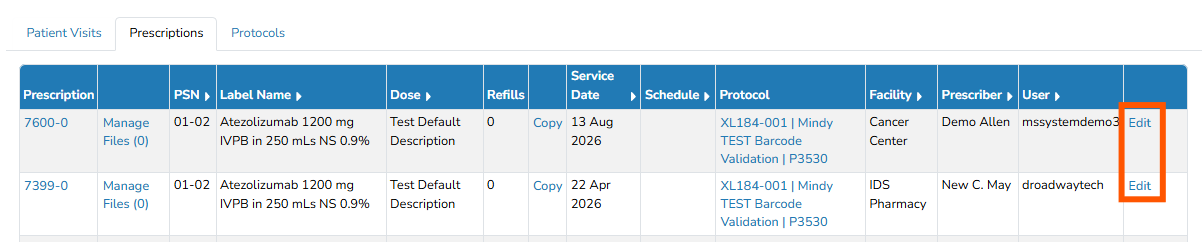
To edit a prescription, on the Patient Profile screen, select the Edit link for the Rx (on the far-right side).
To edit the inventory dispensed, select the “Select Inventory to be Used” link above the prescription details, change the current inventory selected to “0” (or other appropriate quantity), add a quantity next to the correct inventory, and then save. If the inventory is correct, but the lot or item number is transposed, do not edit the inventory on the prescription. Instead, please edit the lot and item number on the View/Edit Inventory screen.
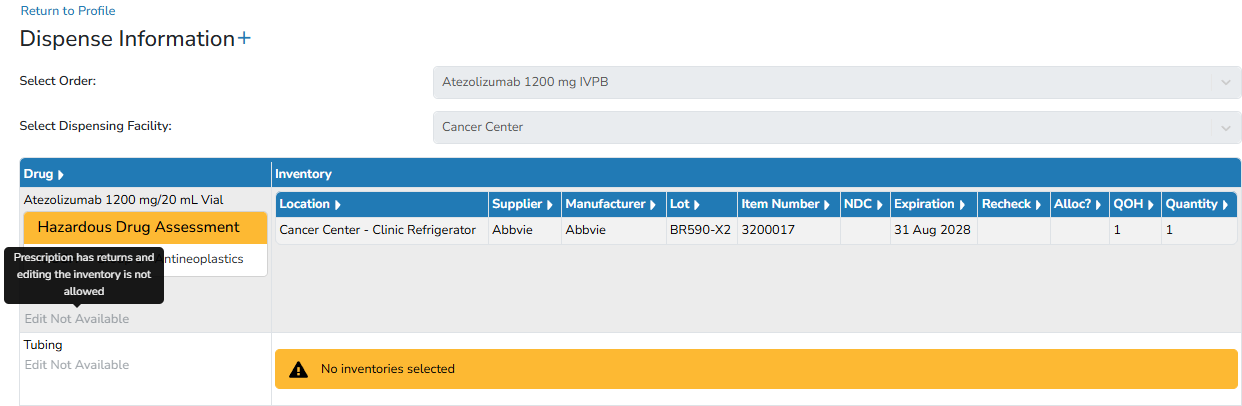
If a participant return has been recorded against the dispense, users will not have the option to modify the inventory of the dispense, which is noted by the “Edit Not Available” on the inventory selection portion of the prescription. If you hover over the “Edit Not Available”, you will get a pop-up text that indicates there are returns recorded on the prescription.
To delete a return, please see our article about Deleting Prescription Returns.